


If you encounter an error when signing into your ReviewX account or entering your license key during plugin onboarding, use this guide to identify and resolve the root cause.
Thank you for reading this post, don't forget to subscribe!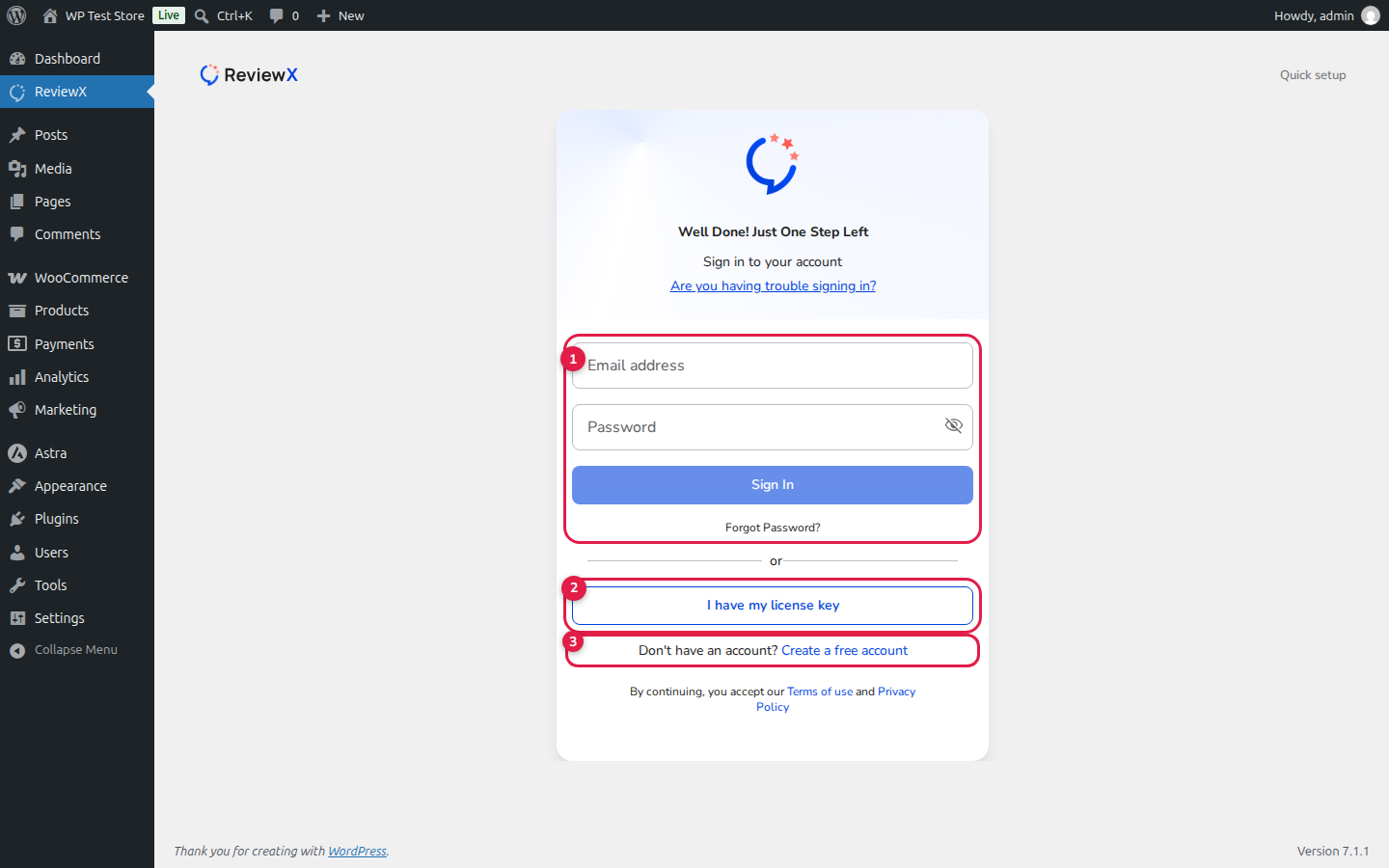
Common Login Issues & Solutions
1. Incorrect Portal Credentials (Callout [1])
Ensure you are using your registered ReviewX Client Portal email and password (portal.reviewx.io), not your local WordPress admin username. If you forgot your password, click the Forgot Password? link to reset it.
2. Switching to License Key Activation (Callout [2])
If account login fails due to agency multi-tenant restrictions or complex corporate passwords, click the I have my license key button. This lets you connect directly using your unique license key (format: lk-xxxx-xxxxxxxx-xxxx) without requiring account credentials.
3. Server Reachability Alert
ReviewX requires that your WordPress site is reachable from the public internet over HTTPS. If you are developing locally behind an expired tunnel or firewall, ReviewX will alert you that it cannot reach your store. Connect using a live public domain or an active tunnel.
4. Creating a Fresh Account (Callout [3])
If you do not yet have an account, click Create a free account to register directly from inside your WordPress dashboard.


