


Publicly responding to customer reviews is one of the most effective strategies for building customer loyalty and showcasing dedicated customer care. Whether thanking a delighted buyer for positive feedback or professionally resolving a concern on a critical review, transparent merchant dialogue converts hesitant shoppers into confident buyers. ReviewX features a comprehensive Store Owner Reply system that enables merchants to post, edit, brand, and showcase admin replies directly on storefront review cards.
Thank you for reading this post, don't forget to subscribe!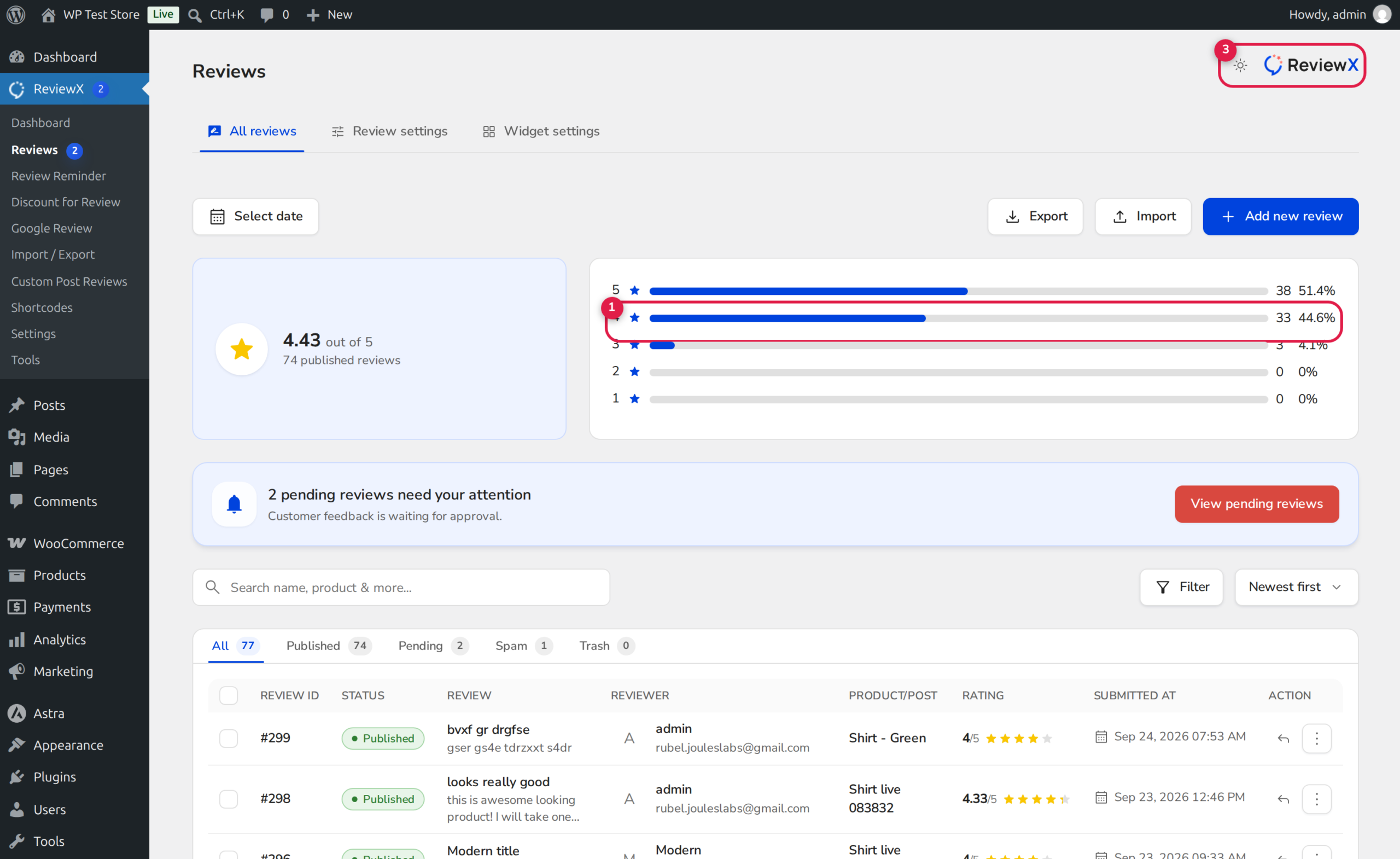
Turn Negative Feedback into Conversion Opportunities
Research shows that over 80% of online shoppers specifically look for negative reviews to see how the business handled customer dissatisfaction. A prompt, empathetic store reply reassures shoppers that your store stands behind its products.
How Store Owner Replies Render on the Storefront
When a store administrator replies to a review in ReviewX:
- Dedicated Reply Container: On the storefront widget, the reply appears nested directly beneath the customer’s feedback inside an indented, distinctively styled card with a brand accent border.
- Verified Merchant Branding: The reply displays your custom Shop Icon or logo alongside the title “Shop owner replied” and the exact reply timestamp.
- Automated Customer Notification: ReviewX dispatches an automated notification email to the customer letting them know that the store owner has personally addressed their review.
Step-by-Step Guide: Posting and Managing Admin Replies
Step 1: Open the Reviews Dashboard
Navigate to ReviewX → Reviews in your WordPress admin menu. The table displays all customer reviews across your store.
Step 2: Locate the Target Review
Use the status filters (Badge 3) or search bar to locate the review you wish to reply to (marked with Badge 1).
Step 3: Click the Reply Button
Click the Reply action button (Badge 2) in the review row. This opens the dedicated merchant response drawer.
Step 4: Draft and Publish Your Response
Enter your professional response in the text field. Click Submit Reply. ReviewX immediately records the reply in wp_comments (as a child comment) and synchronizes the response to the ReviewX SaaS Cloud.
Customizing Your Store Owner Avatar and Logo
To replace the default store placeholder icon with your official brand emblem:
- Navigate to ReviewX → Settings → General settings.
- Locate the Shop logo for email header / admin reply setting.
- Upload a square brand icon (recommended: 120x120px PNG or SVG).
- Click Save. All current and future admin replies on the storefront will immediately render your branded emblem.


