


A high-converting product page layout requires strategic placement of social proof. In modern ecommerce design, reviews shouldn’t simply sit at the bottom of the page; social proof should be woven into the shopper’s decision-making journey — from the above-the-fold star badge down to the in-depth photo reviews section.
Thank you for reading this post, don't forget to subscribe!With ReviewX and Elementor Theme Builder, you can construct bespoke WooCommerce single product templates with complete freedom over review placement and visual architecture.
The High-Converting Review Placement Architecture
Top ecommerce stores structure social proof across three key touchpoints:
- Above the Fold (Header Proof): Place a compact star rating and review count badge right below the product title and price. Clicking this badge smoothly scrolls the shopper down to the full review section.
- Middle Section (Qualitative Insights): Display multi-criteria breakdown bars (e.g. Quality, Fit, Comfort) near sizing charts or specifications.
- Bottom Section (Comprehensive Social Proof): Render the full review list, customer photo gallery, and interactive submission form.
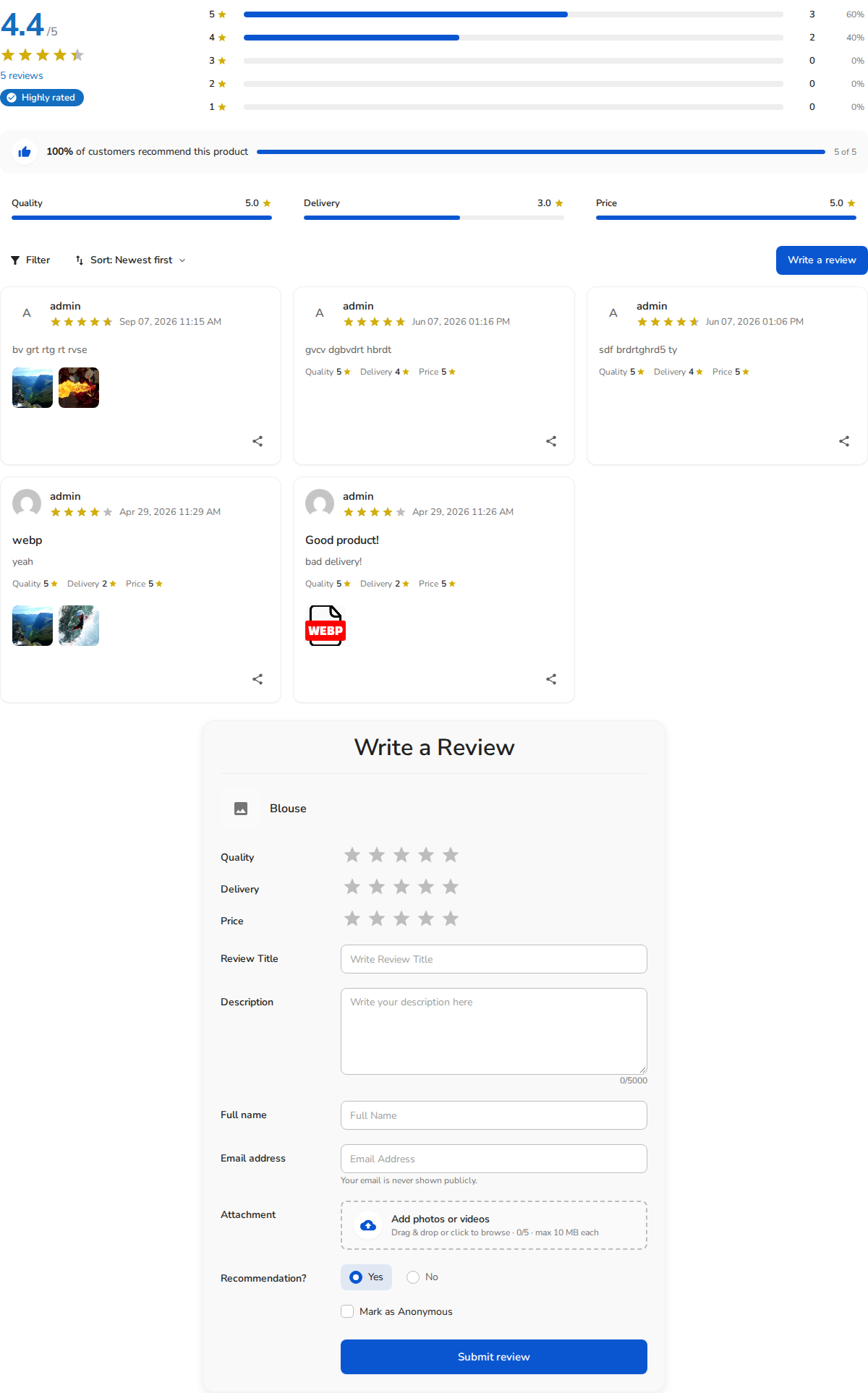
Figure 1: Complete ReviewX social proof layout integrated into an Elementor Single Product template.
Step-by-Step Blueprint in Elementor Theme Builder
1. Creating or Editing the Single Product Template
- Go to Templates → Theme Builder → Single Product in your WordPress admin.
- Click Edit with Elementor on your existing template, or click Add New to build one from scratch.
2. Adding the Above-the-Fold Rating Badge
- Beneath the Product Title widget, insert an Elementor Shortcode widget.
- Enter
[rvx-star-count]. - This displays a compact rating score (e.g. ★ 4.9 (84 reviews)) that reassures shoppers immediately upon landing.
3. Choosing Between Tabbed vs Stacked Review Layouts
- Option A: Tabbed Layout (Compact Design): If your product has extensive technical specifications, drag the ReviewX Product Data Tabs widget into the content area. Reviews will sit cleanly alongside the Description and Additional Info tabs.
- Option B: Stacked Hero Layout (Maximum Social Proof): If visual proof drives your conversions (e.g. fashion, jewelry, home decor), drag the ReviewX Woo Review widget into its own dedicated full-width container below the product details.
Optimizing for Mobile Devices
More than 65% of ecommerce shoppers purchase on smartphones. When designing your Elementor review layout:
- Switch to Responsive Mode: In Elementor, click the computer icon at the bottom of the side panel and select Mobile.
- Stacking Columns: Ensure rating distribution bars and summary scores switch from multi-column rows to clean single-column cards.
- Touch-Friendly Buttons: Increase the padding on “Write a Review” and review filter buttons to ensure effortless tapping on touchscreens.
Publishing & Assigning Display Conditions
- Click Update in Elementor.
- In the Publish Settings modal, define your Display Conditions:
- All Products: Applies the layout globally across your catalog.
- In Category: Assign custom review templates to specific product categories (for example, a photo-heavy layout for Apparel, and a tabbed criteria layout for Electronics).
- Save and preview live on your storefront.


