


While WooCommerce store owners rely heavily on product reviews to boost sales, modern WordPress websites often manage diverse content architectures such as online courses (LMS), real estate listings, book libraries, recipes, portfolio items, and events. ReviewX natively empowers you to extend its multi-criteria rating system, photo feedback, and verified recommendations to any registered WordPress Custom Post Type (CPT).
Thank you for reading this post, don't forget to subscribe!In this guide, you will learn how to enable reviews on your custom post types, configure the review status, and establish a feedback framework tailored to your content.
Why Enable Reviews on Custom Post Types?
Enabling customer feedback on custom post types unlocks substantial advantages for non-ecommerce or hybrid WordPress websites:
- Targeted Credibility: Prospective students, tenants, or readers can evaluate specific aspects of your offerings (such as course clarity or property location).
- Enhanced Search Visibility: Search engines reward user-generated content and rich snippet star ratings on non-product pages, lifting organic click-through rates.
- Audience Engagement: Allows readers and clients to actively interact with your content rather than passively consuming it.
Step 1: Navigate to Custom Post Types in ReviewX
From your WordPress admin dashboard, navigate to ReviewX → Custom Post Types.
Here you will find the centralized management table displaying all custom post types registered for review collection. If no post types have been configured yet, the table will offer a clean empty state inviting you to register your first post type.
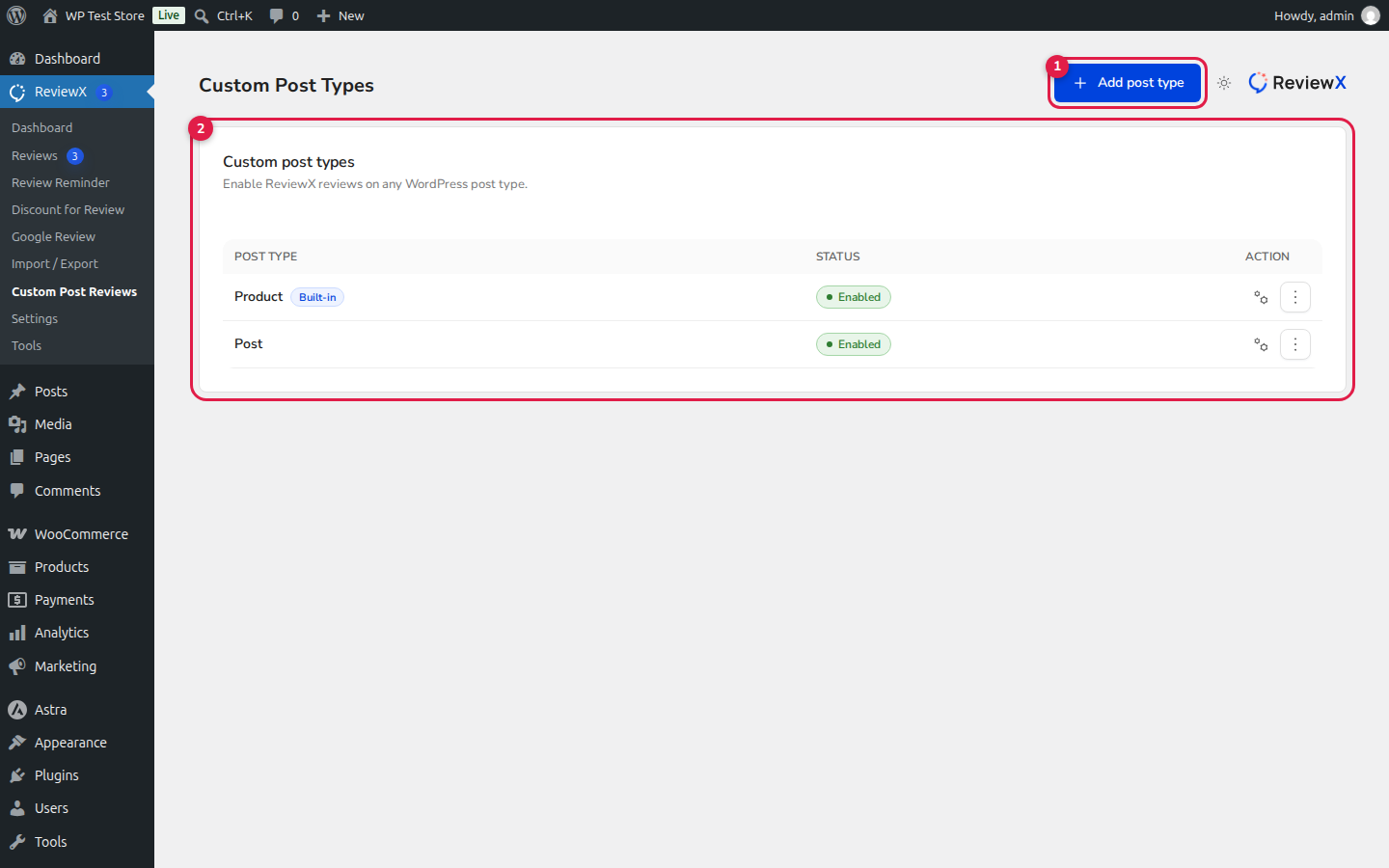
Figure 1: ReviewX Custom Post Types management dashboard with registered post types and status controls.
Step 2: Add a New Custom Post Type
To register a post type for ReviewX feedback:
- Click the Add post type button in the upper-right corner of the table.
- In the modal that appears, enter a descriptive Post type name (for example, “Online Courses”, “Property Listings”, or “Blog Articles”). This label helps you identify this review setup across admin reports.
- Under the Custom post type dropdown, select the target WordPress post type from the list. ReviewX automatically queries all public post types registered on your site (including standard
post, LMS courses, portfolio items, and custom CPTs created via ACF, Pods, or custom code). - Click Save to register the post type.
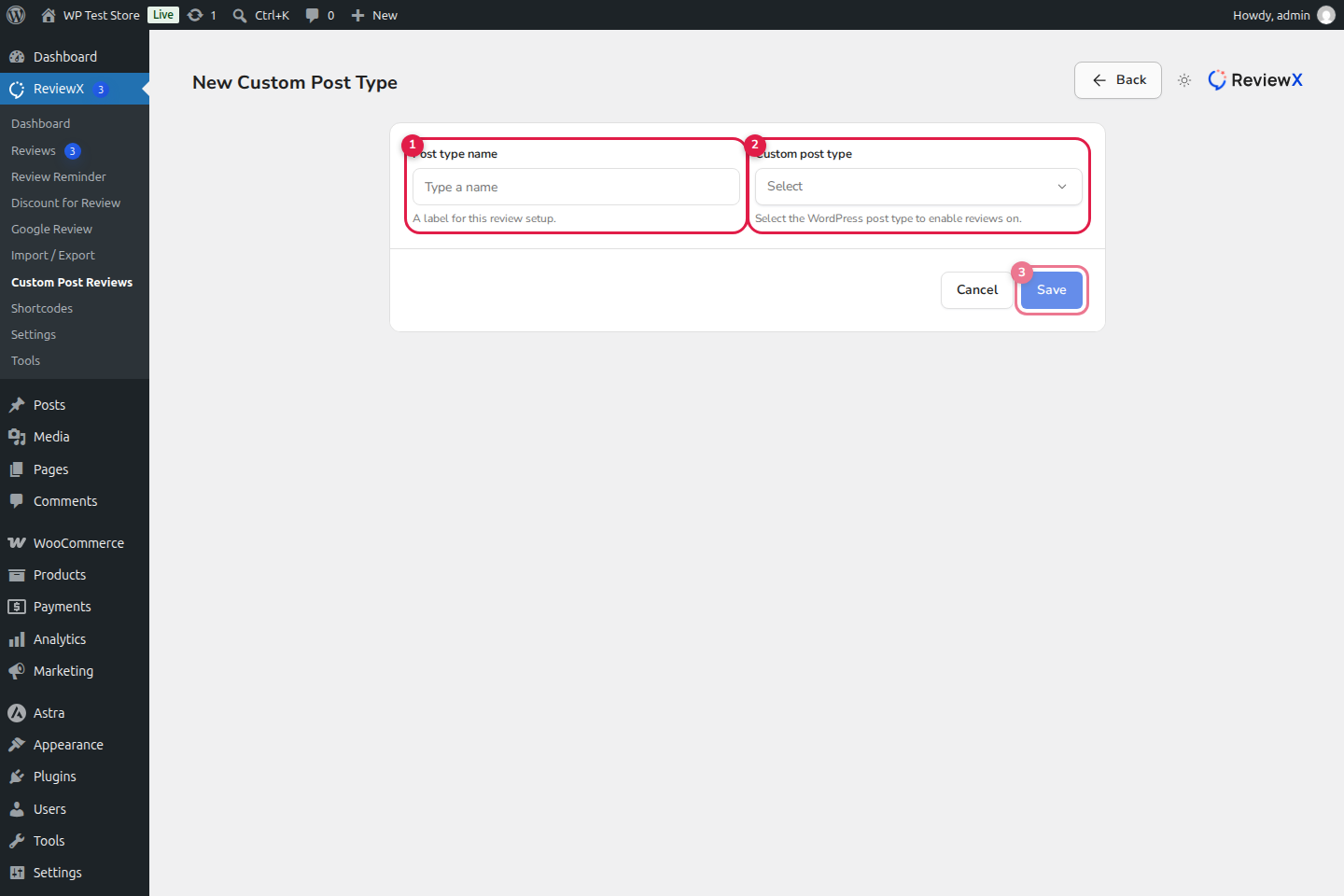
Figure 2: Custom Post Type configuration modal displaying: (1) Post type name label, (2) WordPress CPT selector dropdown, and (3) Save action.
Step 3: Toggle and Manage Review Status
Once registered, your post type appears in the table with its slug and configuration details. You can manage review collection at any time using the Status switch:
- Active (Enabled): ReviewX accepts new review submissions and displays published reviews on single posts of this post type.
- Inactive (Disabled): Temporarily pauses review collection and hides the review submission form on the frontend, while safely retaining existing review data in the database.
Note: When you disable a custom post type, you can re-enable it at any time without losing historical ratings, reviewer metadata, or uploaded photos.
Step 4: Configuring Global Review Rules for CPTs
Custom post type reviews respect your global review policies defined in ReviewX → Settings → Review Settings:
- Auto-Approval: Decide whether submitted reviews publish immediately or remain in moderation until manually approved by an administrator.
- Anonymous Reviews: Choose whether logged-out visitors can leave reviews or if authentication is mandatory.
- Verified Owner Badges: Control whether reviewer names display verified badges.
- Spam Protection: Enable Google reCAPTCHA or honeypot fields to prevent automated bot spam on your custom post type review forms.
Troubleshooting & Frequently Asked Questions
My Custom Post Type is not showing in the dropdown. Why?
Ensure that your custom post type was registered with public => true and show_ui => true in WordPress. If a CPT is registered as private or internal, ReviewX omits it from the public selector to prevent unintended frontend exposure.
Can I disable reviews on specific individual posts within a CPT?
Yes. You can disable standard WordPress comments/reviews on any specific post edit screen under the Discussion metabox by unchecking “Allow comments”.


