


If you have lost or forgotten your ReviewX Client Portal password, you can regain access within two minutes using our automated recovery process.
Thank you for reading this post, don't forget to subscribe!
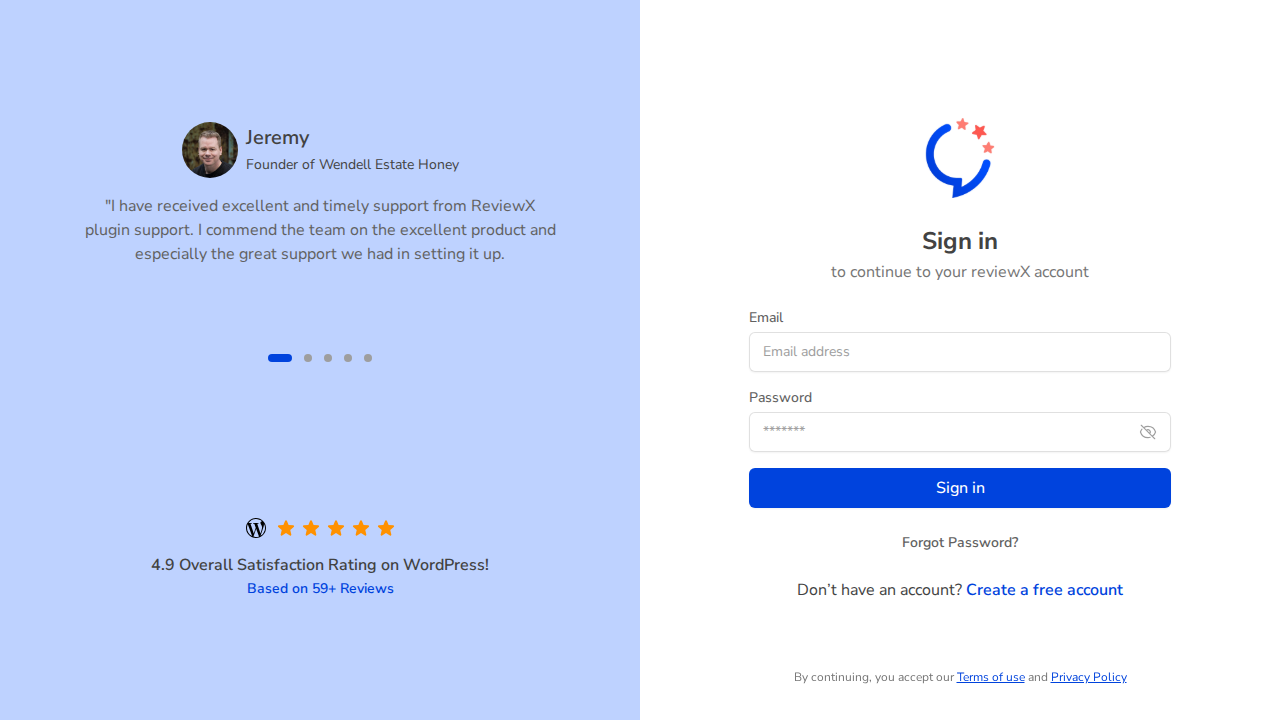
Figure 1: Client Portal sign-in interface featuring automated password recovery.
Step 1: Request a Password Reset Link
- Visit the sign-in page at portal.reviewx.io.
- Click the Forgot Password? link beneath the password field.
- Enter the email address registered with your ReviewX purchase or account.
- Click Send Reset Link.
Step 2: Check Your Inbox
- ReviewX immediately dispatches a secure password reset email with the subject “Reset Your ReviewX Password”.
- Open the email and click the button labeled Reset Password (valid for 60 minutes for security).
- Tip: If the email does not appear in your inbox within 2 minutes, check your Spam / Junk folder.
Step 3: Define Your New Password
- On the password reset page, enter your new strong password.
- Confirm the password and click Update Password.
- You will be redirected to the sign-in screen where you can authenticate with your new credentials.


