


Integrating verified reviews from your Google Business Profile directly into your WooCommerce storefront is one of the fastest ways to build customer trust and boost sales conversions. ReviewX connects directly with the Google Places API to synchronize and display your Google reviews alongside your product feedback.
Thank you for reading this post, don't forget to subscribe!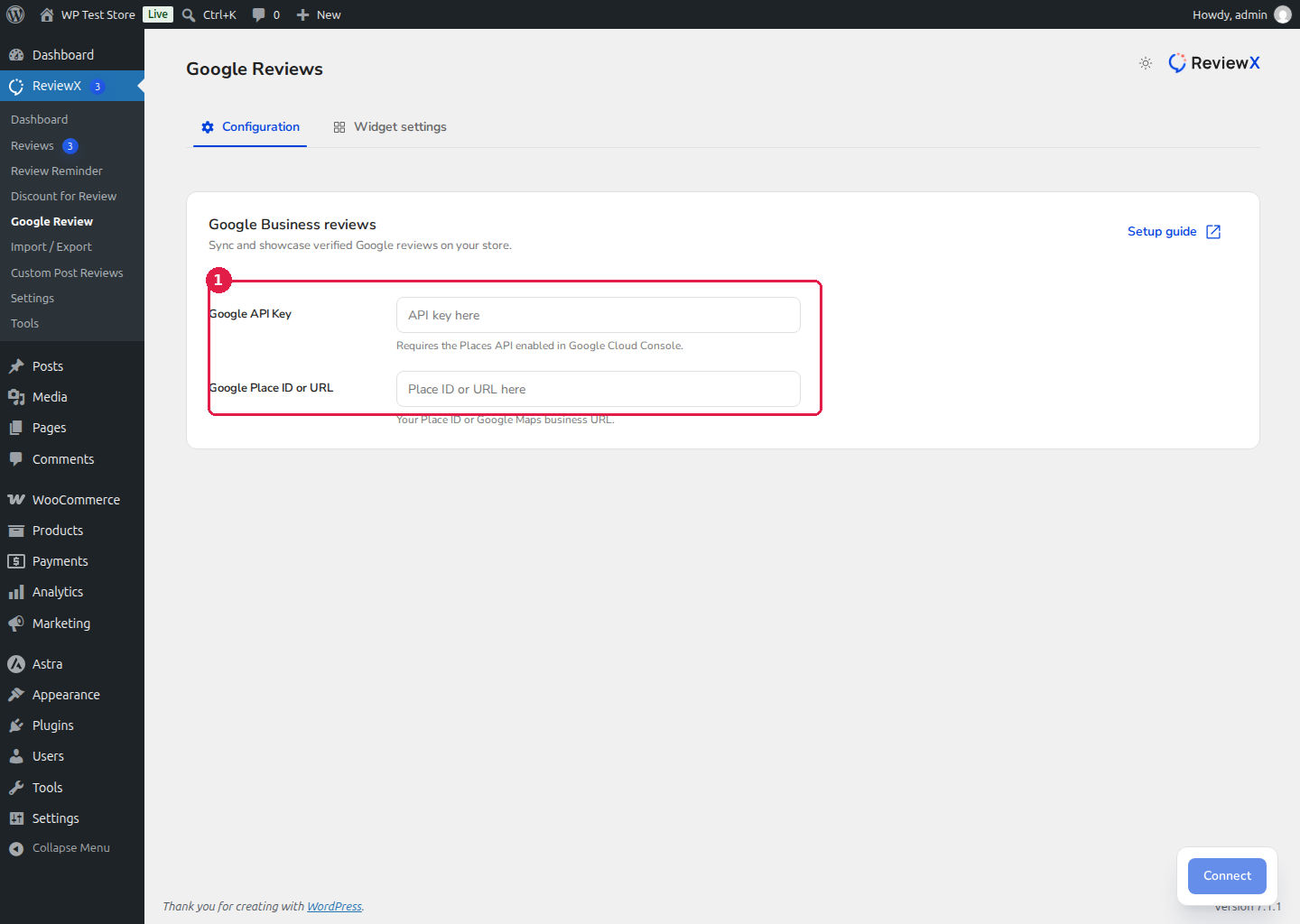
Step 1: Obtain Google Places API Key & Place ID
To connect your Google Business Profile to ReviewX, you need credentials from the Google Cloud Console:
- Go to the Google Cloud Console and create or select a project.
- Navigate to APIs & Services → Library, search for Places API, and click Enable.
- Go to APIs & Services → Credentials, click Create Credentials → API key, and copy your key.
- To find your business’s Place ID, use the official Google Place ID Finder, search for your business name, and copy the alphanumeric Place ID string (e.g.
ChIJN1t_tDeuEmsRUsoyG83frY4).
Step 2: Connect Credentials in ReviewX
- In your WordPress admin menu, navigate to ReviewX → Google Review.
- Paste your API key into the Google Places API Key input field [1].
- Paste your Place ID into the Google Place ID input field [2].
- Click the blue Save & Sync button [3].
Step 3: Display Google Reviews on Your Store
Once synchronized, you can showcase your Google reviews anywhere on your site using:
- Shortcode: Place
[rvx-google-review]on any page, post, or footer widget. - Gutenberg Block: Search for the ReviewX Google Reviews block (
reviewx/google-reviews) in the WordPress Block Editor. - Elementor Widget: Drag the ReviewX Google Reviews widget into your Elementor layouts.


