


To provide lightning-fast page loading and optimal Core Web Vitals, ReviewX caches complex review metrics — including star rating distribution graphs, multi-criteria breakdown bars, total review counts, and JSON-LD schema markup. The Cache Management tool allows administrators to inspect and purge cached data instantly.
Thank you for reading this post, don't forget to subscribe!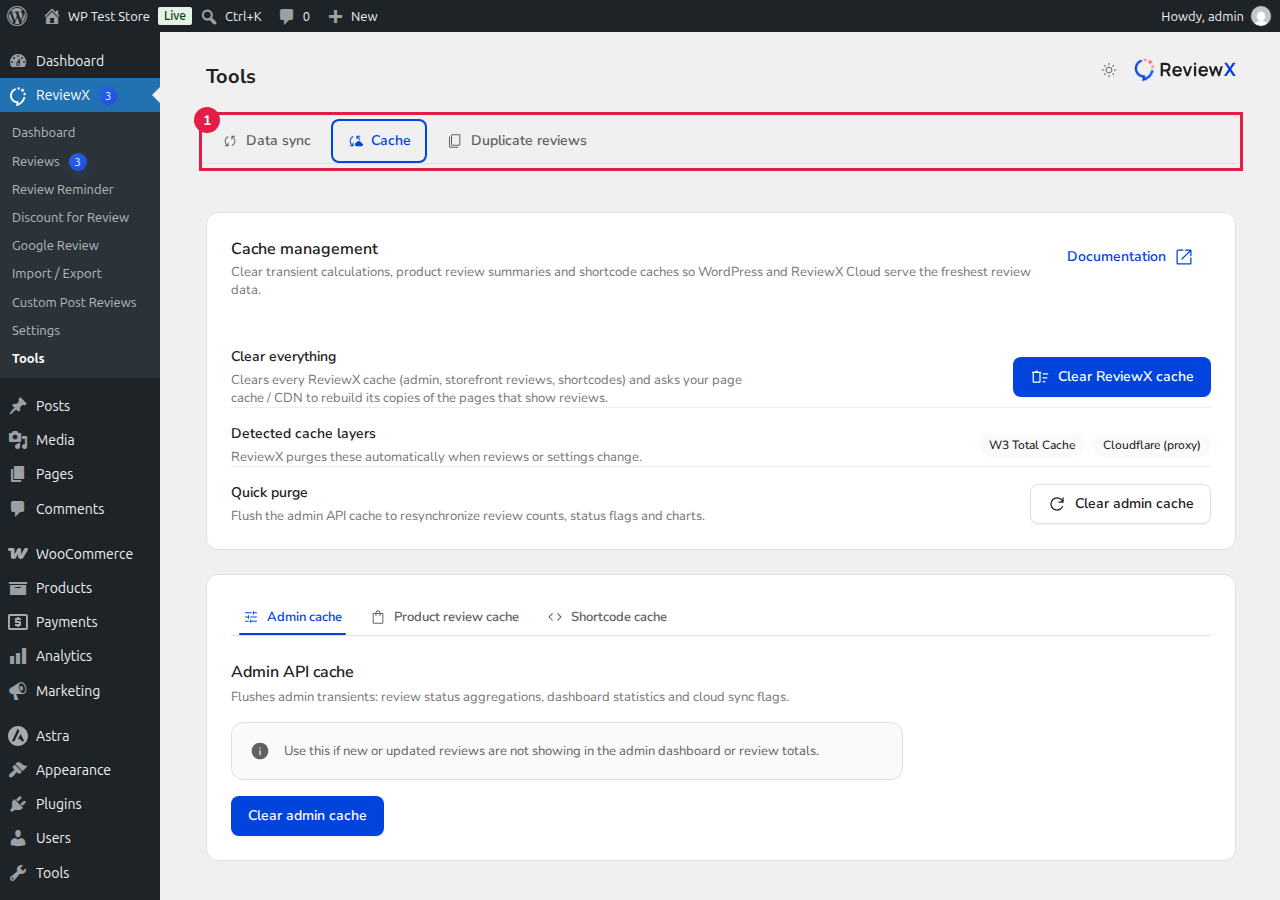
What ReviewX Caches
- Review Aggregations: Total review counts and average rating scores for every WooCommerce product and custom post type.
- Criteria Graphs: Multi-criteria breakdown percentages and scores.
- Schema Rich Snippets: AggregateRating JSON-LD schema generated for Google search result rich stars.
- Storefront API Payloads: Pre-rendered review widget data served via REST API.
When Should You Clear Cache?
ReviewX automatically invalidates cache whenever new reviews are submitted, approved, or deleted. However, you should manually clear the cache if:
- You completed a CSV bulk import of reviews and want ratings updated on product pages immediately.
- You adjusted criteria weights or renamed multi-criteria review options.
- You modified product titles, categories, or URLs and notice schema discrepancies in Google Search Console.
- You purged duplicate reviews and want counters refreshed store-wide.
How to Clear ReviewX Cache
- In your WordPress admin menu, navigate to ReviewX → Tools.
- Click the Cache Management tab.
- Review the cached items counter [1] showing total cached review keys.
- Click the red Clear Cache button [2].
- ReviewX will instantly purge all stored transients and rebuild fresh rating data upon the next product page visit.


