


If you are transitioning your WooCommerce store from Judge.me to ReviewX, you can migrate your entire review history — including star ratings, customer feedback, timestamps, reviewer names, and verified buyer badges — without losing a single customer testimonial.
Thank you for reading this post, don't forget to subscribe!Because Judge.me operates via external cloud storage while ReviewX synchronizes directly with your WordPress database and ReviewX Cloud, migration is completed seamlessly via ReviewX’s high-speed CSV Bulk Import tool.
What Carries Over During Migration?
| Review Attribute | Migration Status | Notes |
|---|---|---|
| Star Rating (1–5) | ✓ Fully Preserved | Directly converts into ReviewX aggregate star ratings. |
| Review Content & Title | ✓ Fully Preserved | Full testimonial text is imported and searchable. |
| Reviewer Name & Email | ✓ Fully Preserved | Retained for customer verification and moderation. |
| Submission Date & Time | ✓ Fully Preserved | Original timestamps are maintained chronologically. |
| Verified Buyer Status | ✓ Optional Auto-Tag | Select Mark as verified during import. |
Step 1: Export Your Reviews from Judge.me
- Log in to your Judge.me Dashboard.
- Navigate to Reviews → All Reviews.
- Click the Export button in the top right.
- Select Export all reviews and choose
CSVformat. Judge.me will generate and download your export file.
Step 2: Align Column Headers to the ReviewX CSV Template
- In WordPress, navigate to ReviewX → Import / Export.
- Click Download Sample CSV to view the standardized ReviewX column structure.
- Open your Judge.me CSV export in Google Sheets, Excel, or a text editor and align the columns as follows:
| Judge.me Export Header | ReviewX Template Header | Description |
|---|---|---|
product_handle / product_id |
Product ID or SKU |
Matches review to the correct WooCommerce product. |
rating |
Rating |
Numeric rating between 1 and 5. |
title |
Review Title |
Review heading or summary line. |
body |
Review Content |
Full customer testimonial text. |
reviewer_name |
Reviewer Name |
Customer display name. |
reviewer_email |
Reviewer Email |
Customer contact email. |
created_at |
Date |
Standard timestamp (e.g. YYYY-MM-DD HH:MM:SS). |
Step 3: Upload and Import Into ReviewX
- In ReviewX → Import / Export, select the Import tab.
- Drag and drop your modified CSV file into the upload box.
- Select your import settings:
- Auto publish: Check this box so imported reviews appear immediately on product pages.
- Mark as verified: Check this box to award the “Verified Owner” badge to imported purchases.
- Click Import now.
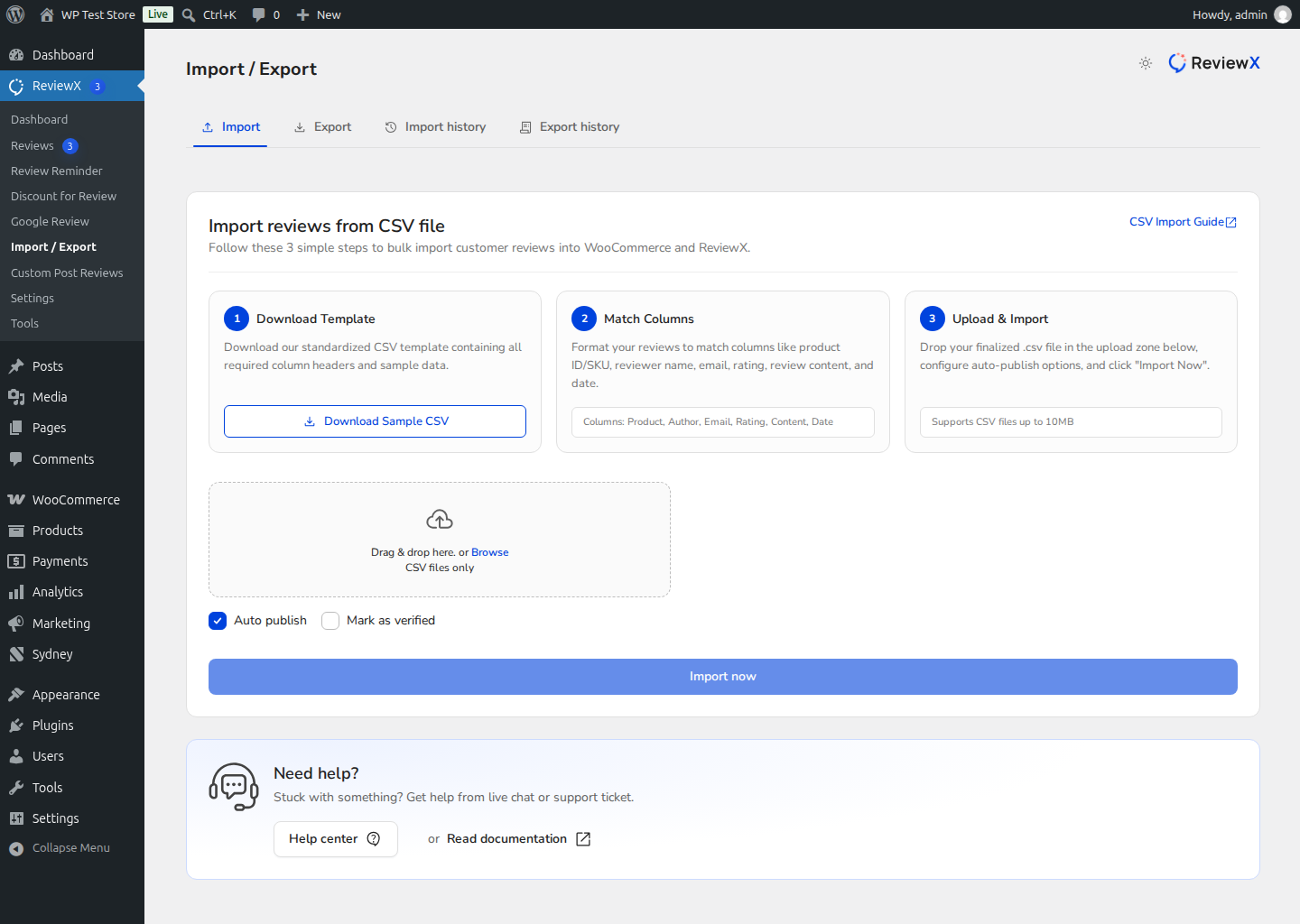
Figure 1: ReviewX bulk import tool allowing rapid CSV migration with verification flags.
Step 4: Verify Import History
Once the import finishes, click the Import history tab to review total records imported, any skipped rows, and execution logs. Then visit your storefront product pages to confirm that historical Judge.me reviews are rendered with ReviewX’s modern widget layout.


