


Fine-tuning the language of your review form is a standard part of optimizing customer response rates. You might find that changing a vague label like “Quality” to “Material Quality” or “Sizing” to “True to Size” clarifies the prompt and encourages more thoughtful reviews.
Thank you for reading this post, don't forget to subscribe!When you edit a review criterion in ReviewX, the change is instant and non-destructive. However, understanding how ReviewX connects labels to underlying database keys ensures your review data remains semantically accurate and trustworthy.
1. Technical Architecture: Display Labels vs. Criteria Keys
Inside the ReviewX settings store (useReviewSettingsStore.ts), each review criterion consists of two parts:
- The System Key (
key): A persistent internal identifier (such ascriteria_1,criteria_2) stored in database records and comment meta. - The Display Name (
name): The human-readable string displayed to shoppers on the storefront and in the admin dashboard.
When you edit a criterion in the Multi-Criteria Editor, ReviewX updates the name string while keeping the underlying system key identical. As a result, all existing ratings previously submitted under that key automatically display with the updated label — with 100% mathematical continuity and zero data loss.
2. Semantic Consistency: Safe Edits vs. Risky Edits
Because editing updates the label across both historical and future reviews, it is essential to distinguish between semantic refinement and fundamental metric shifts:
- Safe & Recommended Edits (Clarification & Polish):
- “Fit” → “Fit & Sizing”
- “Speed” → “Shipping Speed”
- “Value” → “Value for Money”
- “Durability” → “Long-Term Durability”
- Outcome: Past customer ratings remain accurate and contextually aligned with the improved label.
- Risky Edits (Topic Shifts):
- “Packaging” → “Sound Quality”
- “Ease of Setup” → “Battery Life”
- Outcome: Past customers who gave 5 stars for packaging will now show 5 stars for sound quality — misleading shoppers and violating review transparency principles.
- Correct Action: Delete the obsolete criterion and add a new one instead.
3. Step-by-Step Guide: Editing Review Criteria
To edit criteria labels or reorder their position:
- Go to ReviewX → Reviews in your WordPress dashboard.
- Click the Review settings button in the top navigation bar.
- Under the Multi-criteria reviews section, locate the criterion you wish to update.
- Click into the text input field and type your revised title.
- To change the visual hierarchy, grab the drag handle icon (
rvx-drag-handle) on the left and drag the row up or down. - Click the Save button at the bottom of the page.
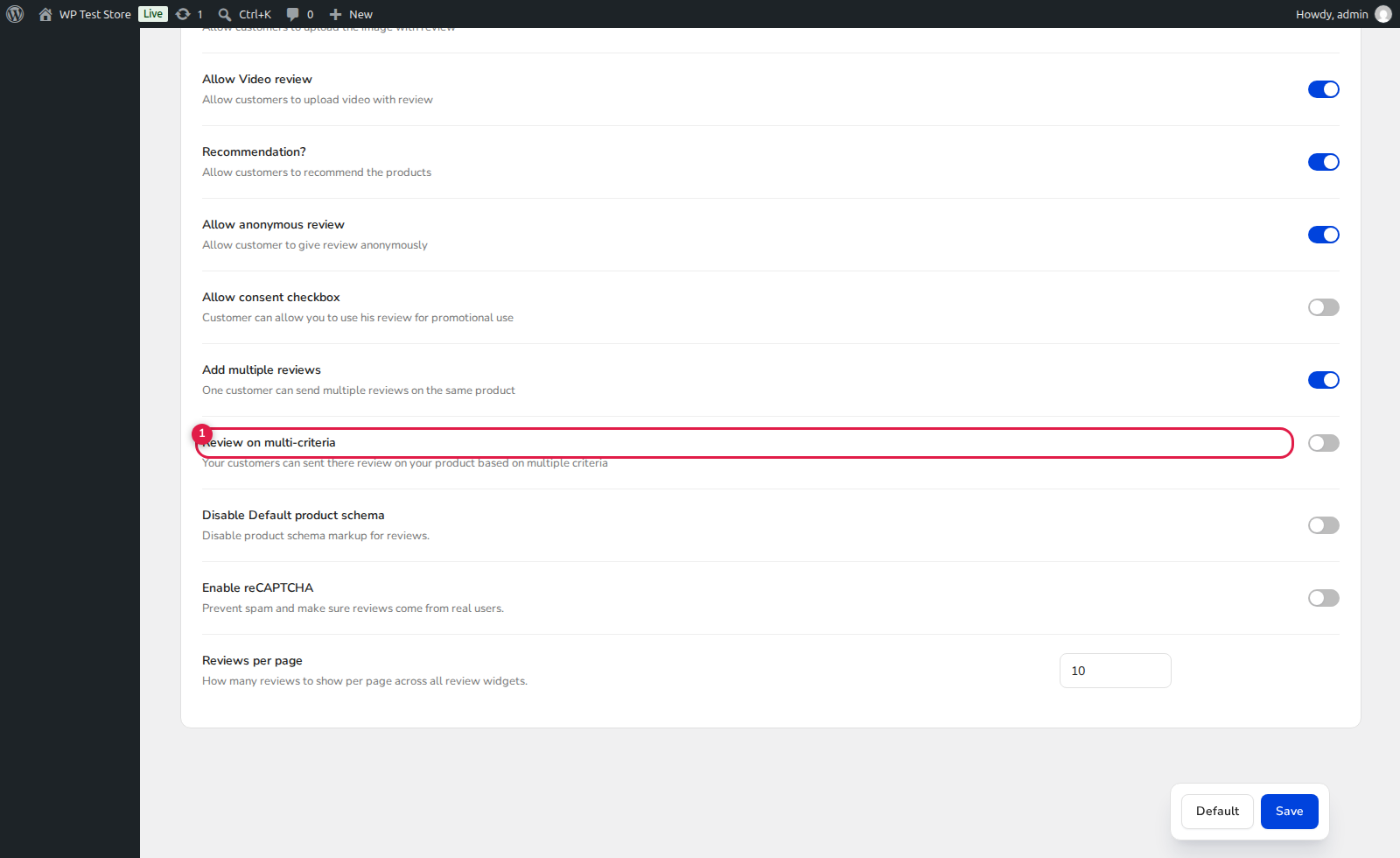
(2) Reorder Drag Handle: Instantly reposition criteria without changing their keys.
(3) Name Input Field: Edit the visible label across storefront forms, cards, and graph widgets.
(5) Save: Immediately flushes cached frontend templates.


