


ReviewX is fully translation-ready and conforms to standard WordPress internationalization standards. Every user-facing label, admin setting, and email string is translatable into any language using standard gettext PO/MO files.
Thank you for reading this post, don't forget to subscribe!The free Loco Translate plugin provides a built-in browser editor that allows you to translate ReviewX directly inside your WordPress admin dashboard without needing external desktop software like Poedit.
Step 1: Install Loco Translate
- In your WordPress dashboard, navigate to Plugins → Add New.
- Search for Loco Translate.
- Click Install Now, then click Activate.
- A new Loco Translate item will appear in your admin sidebar.
Step 2: Initialize a New Language File
- Go to Loco Translate → Plugins.
- Select ReviewX – Multi-Criteria Rating & Reviews from the list.
- Click the New language link above the translation table.
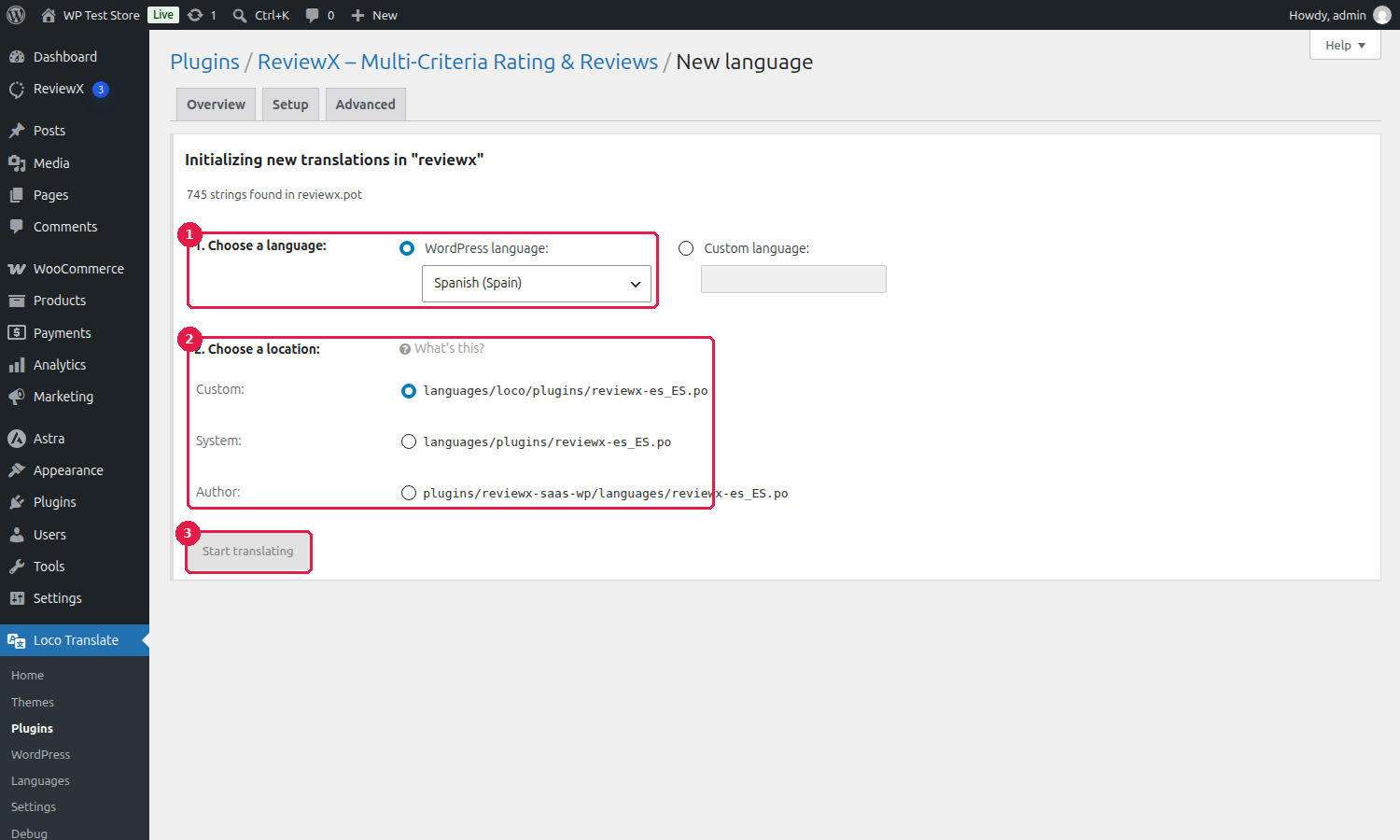
On the language initialization screen, configure the following settings:
- [1] Choose a language: Select your target WordPress language from the dropdown menu (e.g., Spanish (Spain), German, French, Arabic).
- [2] Choose a location (Crucial): Always select Custom (
languages/loco/plugins/reviewx-{locale}.po) or System (languages/plugins/reviewx-{locale}.po).Important: Never save translations under the Author directory (
plugins/reviewx-saas-wp/languages/). Files placed inside the plugin directory will be permanently deleted whenever ReviewX is updated to a new version. Choosing Custom ensures your translations are safely preserved forever. - [3] Start translating: Click the blue Start translating button to create the translation file and open the editor.
Step 3: Translate ReviewX Strings
Once inside the PO editor:
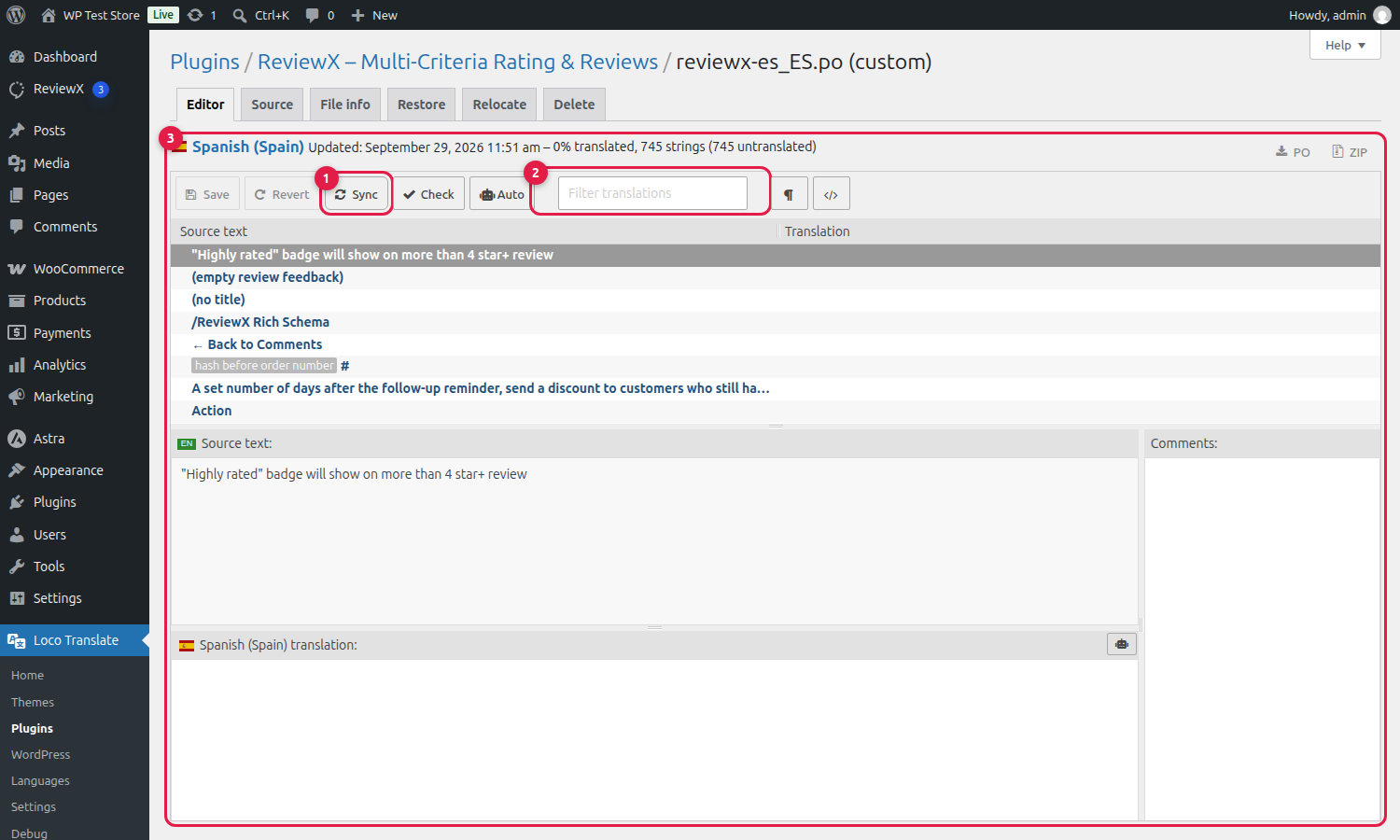
- [1] Sync Button: Verifies that all current strings from
reviewx.potandfrontend.potare loaded. - [2] Filter translations: Type any keyword in the search bar to locate specific storefront strings, such as:
Write a reviewVerified OwnerHelpful/Was this review helpful?Sort by/Filter byRecommendation
- [3] Translation Editor: Click a string in the top table, view the original English text in the Source text box, and type your localized translation into the translation text box below.
- Click Save in the toolbar. Loco Translate automatically generates the compiled binary
.mofile required by WordPress.
Step 4: Verify on the Storefront
- Go to Settings → General → Site Language and ensure your WordPress site language matches your newly translated locale.
- Open any product page with the ReviewX widget to confirm that buttons, rating headers, and form fields display in your language.
- If you use caching plugins, clear your store cache to ensure the freshly compiled
.mofile is loaded.


