


To ensure high storefront performance, ReviewX caches transient calculations, product review summaries, and shortcode outputs. When you make changes to review settings, import new reviews, or update criteria, clearing the cache ensures your storefront serves the freshest data immediately.
Thank you for reading this post, don't forget to subscribe!Step 1: Open Cache Management
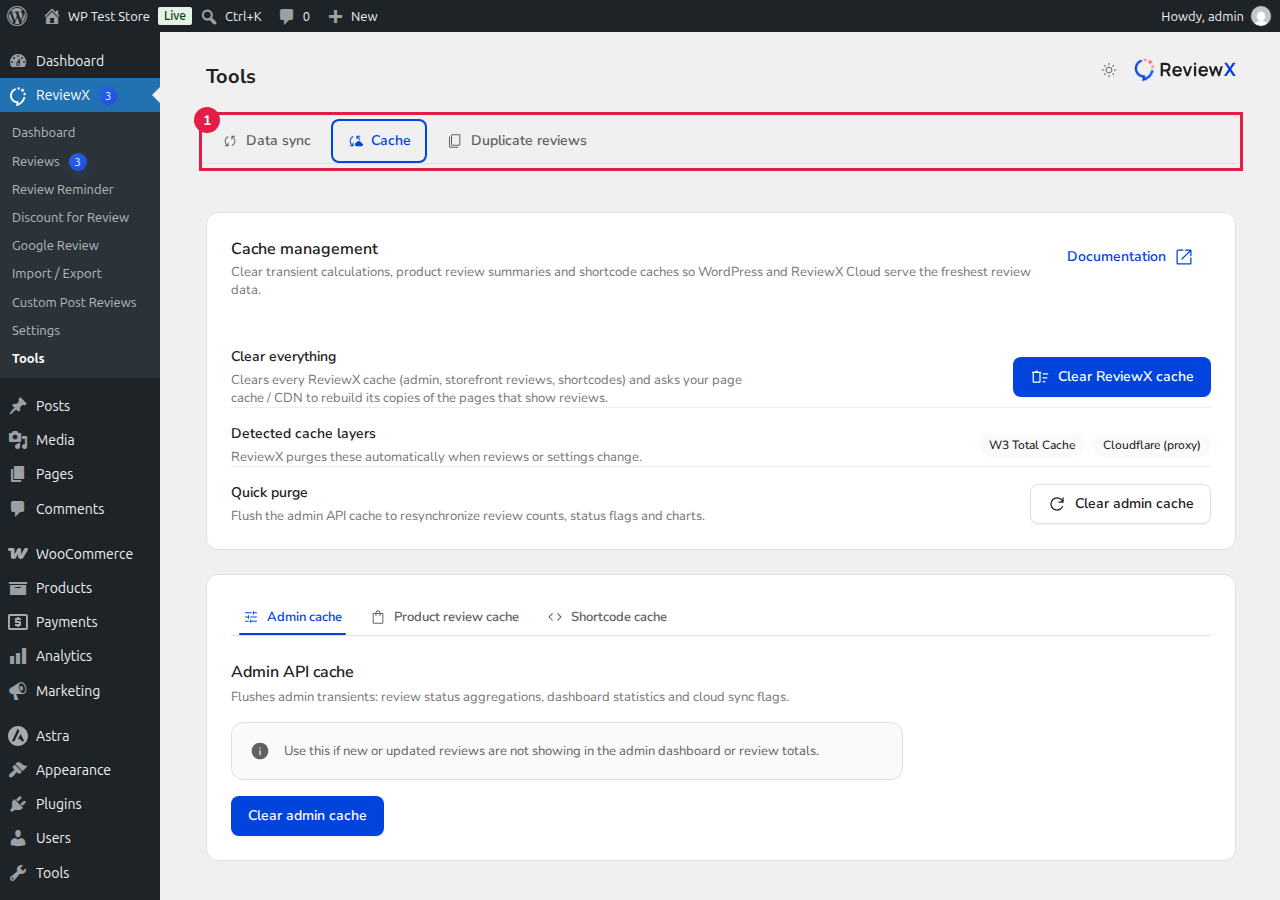
From your WordPress dashboard, go to ReviewX → Tools, then click on the Cache tab marked with [1].
Step 2: Choose Your Purge Option
ReviewX provides both full and granular cache purge tools:
- Clear ReviewX cache — Purges all review transients (admin, storefront reviews, shortcodes) and notifies connected page cache plugins (such as W3 Total Cache or Cloudflare) to rebuild cached pages.
- Clear admin cache — Quickly flushes admin review status aggregations, dashboard statistics, and cloud sync flags if new reviews are not updating in wp-admin.
- Product review cache — Allows you to search for and purge the cached reviews of a specific WooCommerce product.
- Shortcode cache — Clears cached outputs for specific ReviewX shortcodes (Review List, Graph, Summary, or Star Count).
Detected Cache Layers: ReviewX automatically detects active server and plugin cache layers (such as W3 Total Cache and Cloudflare proxy) and purges them automatically whenever reviews are approved, edited, or deleted.


