


While star ratings quantify satisfaction, a direct recommendation answers the ultimate buyer question: “Would people who bought this item actually recommend it to a friend?”. Highlighting that 96% of buyers recommend this product provides immediate, persuasive clarity that accelerates buying decisions. ReviewX features a native Product Recommendation System that collects buyer recommendations at review submission and showcases aggregate recommendation percentages prominently across your storefront.
Thank you for reading this post, don't forget to subscribe!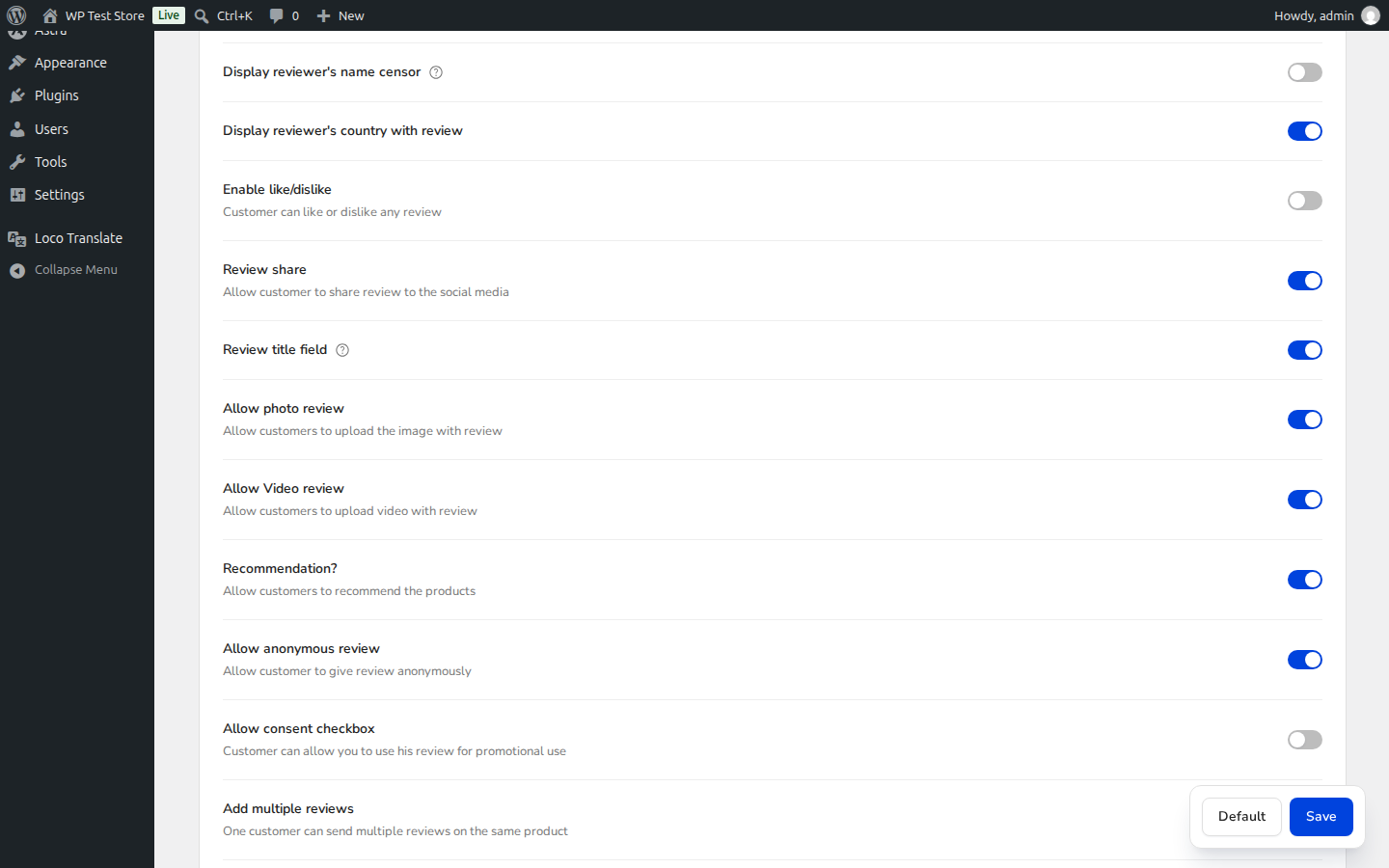
The Power of Net Recommendation Scores
E-commerce studies consistently show that binary recommendation percentages (“98% of customers recommend this item”) are absorbed faster by mobile shoppers than multi-star averages, driving higher cart additions on single product pages.
How Product Recommendations Work in ReviewX
The recommendation workflow consists of two touchpoints:
- At Submission: When a customer submits a review (via the on-site form or from a Review Reminder email link), an intuitive prompt asks: “Would you recommend this product to a friend?” with a simple checkbox or thumbs-up selector.
- On the Storefront: ReviewX calculates the aggregate recommendation percentage across all verified reviews and displays a prominent badge (e.g., 95% of buyers recommend this) within the product’s review summary widget. In addition, individual review cards feature an authentic green badge: “✓ Recommended”.
Step-by-Step Configuration Guide
Step 1: Open Review Settings
From your WordPress dashboard, navigate to ReviewX → Reviews → Review settings.
Step 2: Enable the Recommendation Feature
Scroll down to find the Recommendation option (marked with Badge 1). Toggle the switch to the ON position.
Step 3: Save Changes
Scroll down and click Save changes (marked with Badge 2). ReviewX instantly updates its submission form schema and widget aggregation templates.
Customizing Storefront Recommendation Presentation
Once enabled, you can further fine-tune how recommendations appear through ReviewX → Reviews → Widget settings:
- Summary Header Placement: Position the recommendation percentage directly alongside your overall star rating and multi-criteria breakdown.
- Individual Review Badges: Display a distinct green checkmark or thumbs-up icon next to the reviewer’s name to highlight verified recommendations.
- Filter Integration: Allow shoppers to filter the review list to show only reviews from customers who recommended the item.
Automating Recommendations via Email
ReviewX automated review reminder emails include direct deep-links that pre-select the recommendation prompt, maximizing completion rates among verified buyers.


