


If you recently migrated reviews from Judge.me to ReviewX via CSV import and some entries appear to be missing, unassigned, or not visible on the frontend, use this step-by-step diagnostic guide to identify and resolve common issues quickly.
Thank you for reading this post, don't forget to subscribe!Checklist: The 4 Most Common Migration Bottlenecks
1. Mismatched Product IDs or SKUs
Symptom: Reviews imported successfully according to the log, but don’t show up on any product page.
Cause: In Judge.me, products are often identified by Shopify product IDs or external handles that differ from your WooCommerce product post IDs or SKUs.
Solution: Open your CSV file and ensure that the Product ID column contains the actual WordPress Post ID of the WooCommerce product (found in Products → All Products by hovering over the product title), or that the SKU column exactly matches your WooCommerce product SKU.
2. Reviews Imported with “Pending” Status
Symptom: Reviews appear inside ReviewX → All Reviews in your admin, but are absent from the public product page.
Cause: If the Auto publish checkbox was unchecked during import, or if your global moderation policy requires manual approval, imported reviews are placed in the Pending queue.
Solution: Navigate to ReviewX → All Reviews, click the Pending tab, select the imported reviews, and choose Bulk Actions → Approve.
3. Date Format Inconsistencies
Symptom: The import fails with a parsing error on specific rows.
Cause: Judge.me exports timestamps in varying ISO 8601 strings (e.g., 2023-11-14T18:23:45Z) which may cause parsing errors if regional date formats are mixed.
Solution: Format the date column in your spreadsheet to the standard MySQL datetime format: YYYY-MM-DD HH:MM:SS (e.g. 2026-03-15 14:30:00).
4. Stale Storefront Cache
Symptom: The database contains the reviews, but the product page still displays old review counts.
Solution: ReviewX caches aggregate scores and widget HTML for maximum loading speed. Navigate to ReviewX → Tools → Cache Management and click Clear Cache. If you use a caching plugin (WP Rocket, LiteSpeed, W3 Total Cache), flush your page cache as well.
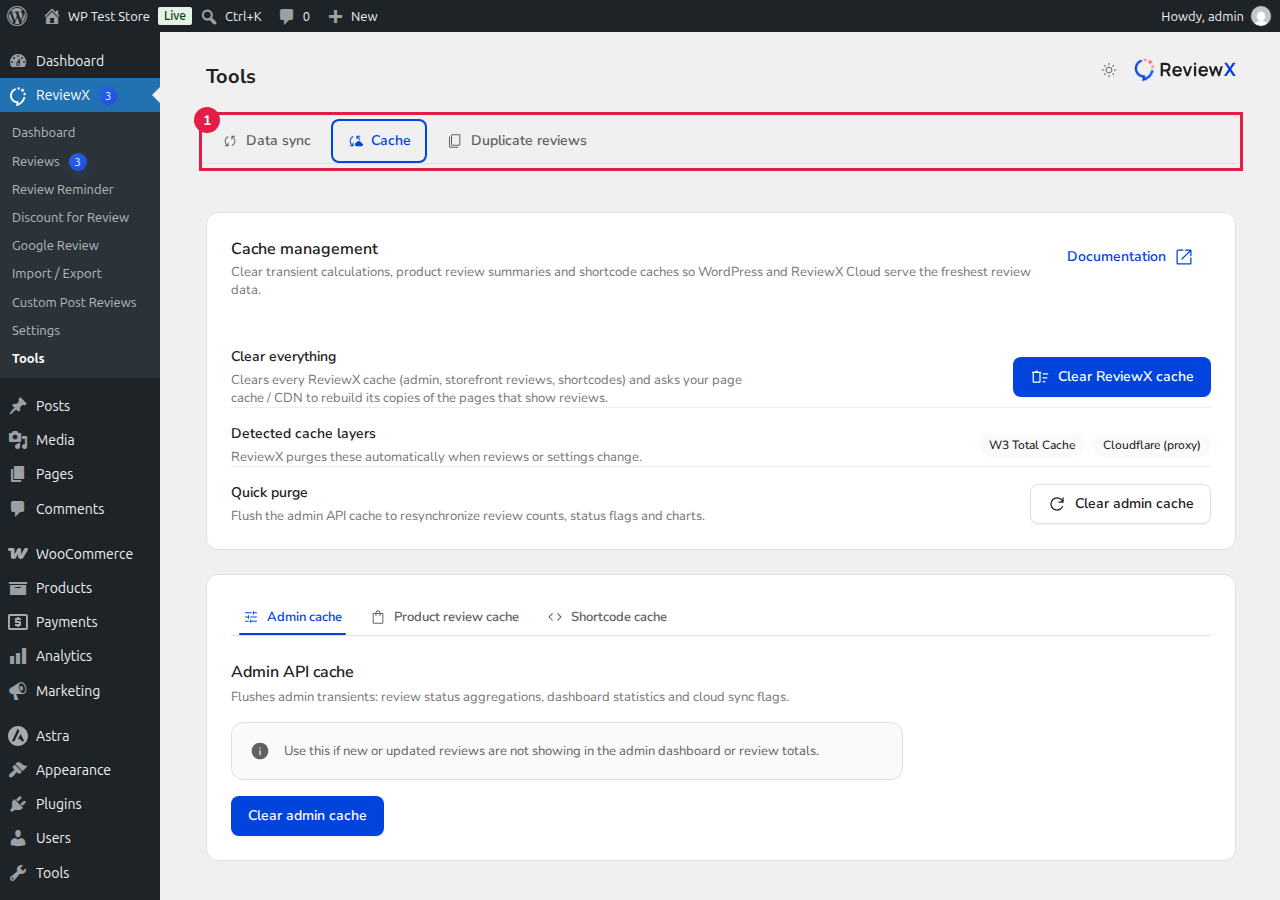
Figure 1: Clearing ReviewX cache ensures newly imported reviews reflect immediately across product widgets.
Reviewing Detailed Error Logs
If you encounter unexpected import errors, go to ReviewX → Import / Export → Import history. Each batch displays a summary with total rows processed, successful entries, and error logs detailing which row number failed and why.


