


Automated spam bots and fraudulent reviews can quickly clutter your WooCommerce store and mislead genuine shoppers. ReviewX features integrated Google reCAPTCHA Protection directly inside your review submission forms to block bots while maintaining a seamless submission experience for real customers.
Thank you for reading this post, don't forget to subscribe!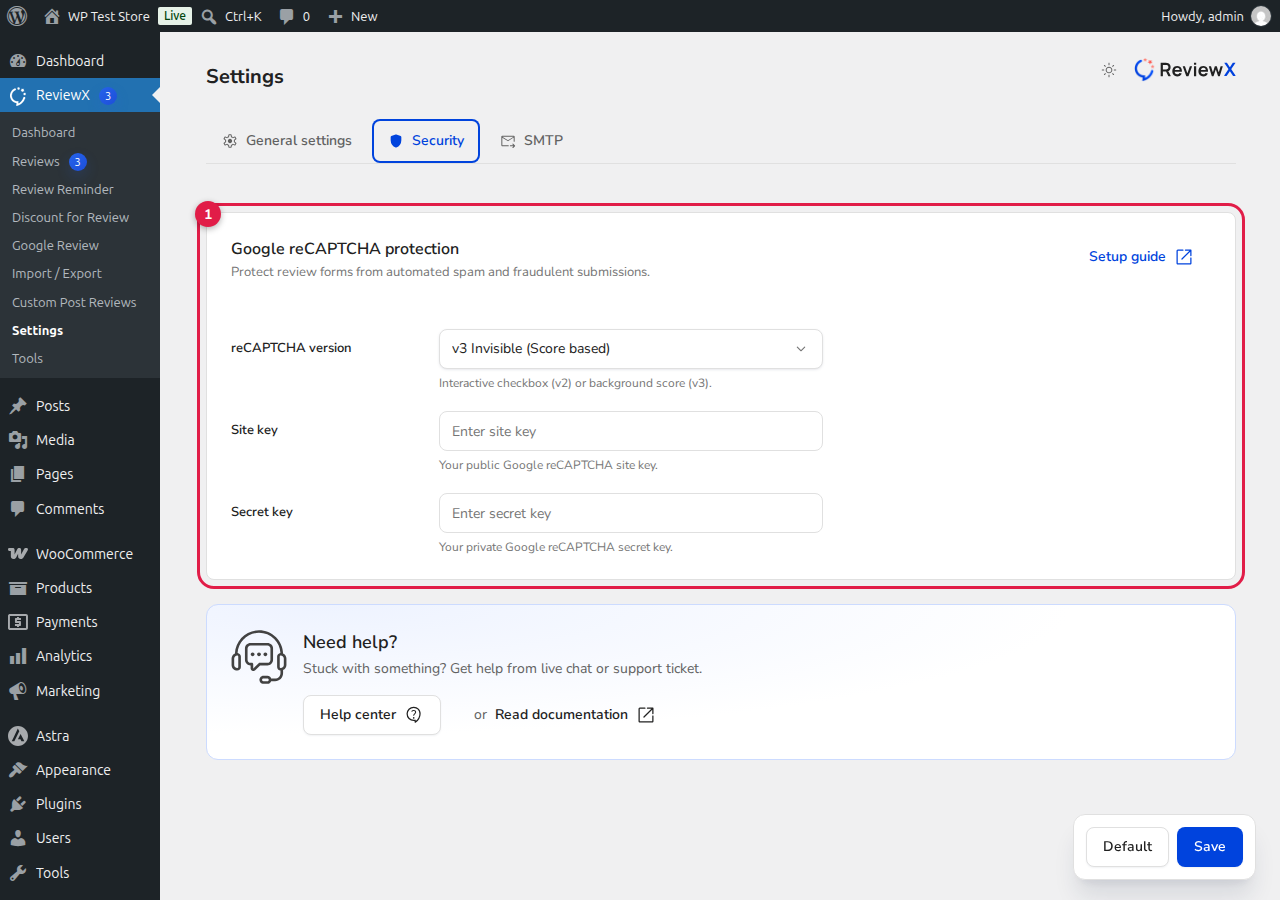
Step 1: Obtain Google reCAPTCHA Keys
To connect reCAPTCHA to ReviewX, you need public API keys from Google:
- Visit the official Google reCAPTCHA Admin Console and sign in with your Google account.
- Under Register a new site, enter a label (e.g. My WooCommerce Store).
- Choose your reCAPTCHA type:
- reCAPTCHA v3: Invisible, score-based verification that analyzes user behavior without requiring user interaction. (Recommended)
- reCAPTCHA v2 (“I’m not a robot” Checkbox): Displays an explicit checkbox that prompts users with challenge questions if suspicious activity is detected.
- Under Domains, enter your store’s root domain name (e.g.
yourdomain.com). - Accept the Terms of Service and click Submit.
- Copy your generated Site Key and Secret Key.
Step 2: Enter Credentials in ReviewX
- In your WordPress admin dashboard, navigate to ReviewX → Settings.
- Click the Security tab.
- Select your reCAPTCHA version [1] from the dropdown menu (choose v3 Invisible (Score based) or v2 Checkbox matching the keys generated in Step 1).
- Paste your public Google key into the Site key field [2].
- Paste your private Google key into the Secret key field [3].
- Click the blue Save button in the bottom floating toolbar.
Step 3: Verify Protection on Storefront
Once saved, visit any single product page on your live store in a private/incognito browser window and click Write a review:
- If using v3 Invisible: The Google reCAPTCHA badge will display in the bottom corner of your store, silently verifying human behavior upon form submission.
- If using v2 Checkbox: The “I’m not a robot” checkbox will appear directly inside the ReviewX submission modal before the submit button.
Troubleshooting Tips
- “Invalid domain for Site Key”: Ensure the domain listed in your Google reCAPTCHA console matches your exact live WordPress domain without
https://or trailing slashes. - Key Version Mismatch: If you generated v3 keys in Google, you must select v3 Invisible in ReviewX. Using a v3 key with v2 selected will trigger an authentication error.


