


Complying with modern international privacy regulations—such as the European Union’s General Data Protection Regulation (GDPR), California’s CCPA, and global privacy standards—requires online merchants to secure explicit, informed consent before collecting, storing, and publicly displaying personal user information. Because customer reviews contain personal identifiers such as names, email addresses, and uploaded media, securing affirmative consent during submission is essential.
Thank you for reading this post, don't forget to subscribe!ReviewX includes native GDPR and privacy compliance tooling that embeds an explicit consent checkbox directly into the storefront submission drawer, complete with customizable legal text and strict server-side submission validation.
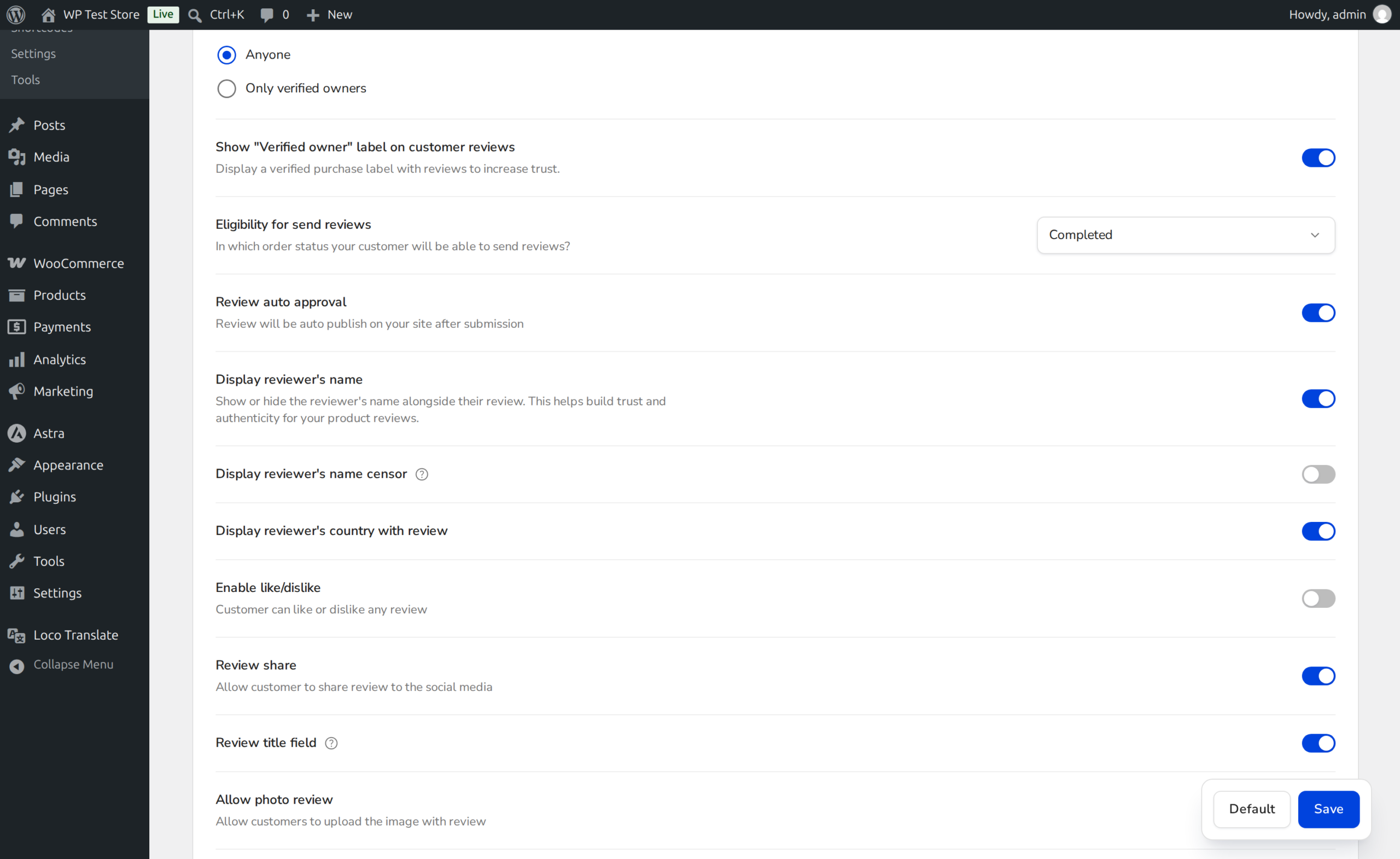
Consent Must Be Freely Given and Unambiguous
Under GDPR guidelines, pre-ticked consent boxes are strictly prohibited. ReviewX enforces unchecked consent states by default on the storefront, requiring shoppers to actively check the box before the form submission button is unlocked.
Server-Side Submission Guard Validation
Unlike generic plugins that rely solely on frontend JavaScript validation (which can easily be bypassed by automated bots or custom API scripts), ReviewX implements strict dual-tier validation:
- Client-Side Guard: The Alpine.js form controller validates the checkbox state in real-time, displaying a warning message and disabling the submission button if the customer attempts to submit without checking the box.
- Backend Controller Guard (
StorefrontSubmissionGuard.php): When the submission payload arrives via the REST API endpoint, ReviewX checks whether consent is mandated:if (!empty($reviews['show_consent_checkbox']['enabled'])) { if (!in_array($consent, [true, 'true', 1, '1'], true)) { return $this->reject('consent_required', __('Consent is required to submit a review.', 'reviewx')); } }If consent is missing, the request is immediately rejected with an HTTP 422 Unprocessable Entity error code.
- Consent Timestamping: Stored reviews record affirmative consent metadata in
wp_commentmeta, providing store administrators with an audit-ready compliance trail.
Step-by-Step Guide: Configuring the Consent Checkbox
Step 1: Open Review Settings
From your WordPress administrative sidebar, navigate to ReviewX → Reviews and click the Review settings tab.
Step 2: Enable the Consent Checkbox
Scroll down to the Allow consent checkbox section (highlighted by Badge 1). Switch the toggle to active (Badge 2).
Step 3: Customize Consent Legal Copy
In the text box provided (Badge 3), enter the exact consent text your store requires. You may include hyperlinks to your site’s privacy policy and terms of service. For example:
I consent to having my review, name, and uploaded media collected and displayed publicly on this website in accordance with the Privacy Policy.Step 4: Save and Test on Storefront
Click Save at the bottom of the page. Open any product page on your storefront, initiate a review submission, and verify that the checkbox appears directly above the submit button.
Best Practices for Privacy Compliance
- Explicit Policy Links: Always include an accessible link to your store’s full Privacy Policy page within the consent disclaimer.
- Clear Data Disclosure: Inform customers clearly if their reviews will be shared on social platforms or search engines via Google Rich Snippets.
- Right to Erasure: Inform shoppers that they can request review deletion or anonymization at any time by contacting your store support.


