


The Settings page in ReviewX manages core administrative alerts, visual branding for emails, security safeguards, and custom mail delivery protocols. You can access it by navigating to ReviewX → Settings in your WordPress sidebar.
Thank you for reading this post, don't forget to subscribe!1. General Settings Tab
The General tab contains your primary store communication preferences:
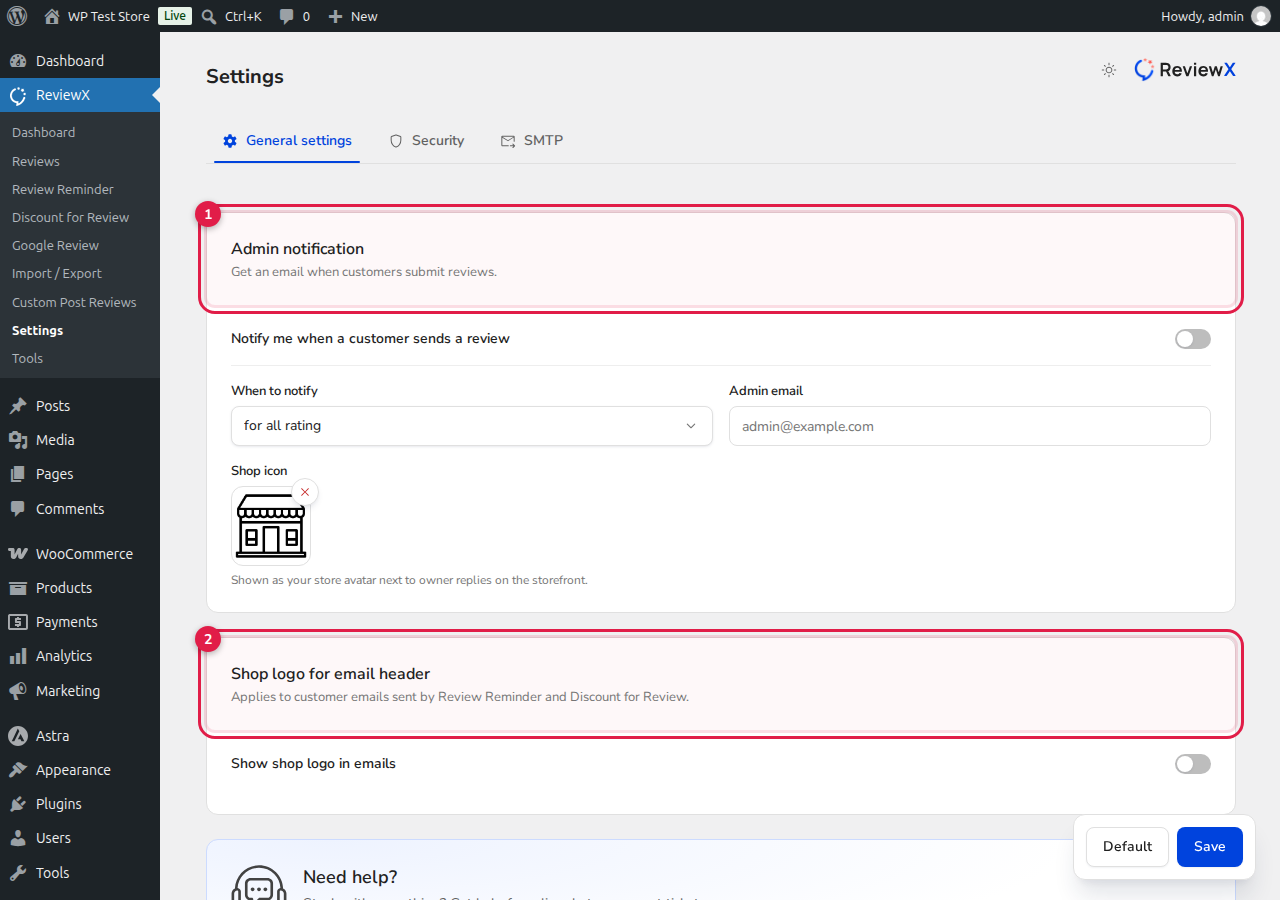
- [1] Admin notification: Enter the admin contact email where you want to receive review submission alerts. Use the condition dropdown (e.g. “for all rating” or specific star thresholds) to control which customer ratings trigger an email to your team.
- [2] Shop logo for email header: Upload your store logo. This logo automatically appears in the header of all automated review reminder emails and coupon notification messages sent to customers.
2. Security Tab
The Security section integrates Google reCAPTCHA directly into your review submission widgets to block automated bot submissions and spam:
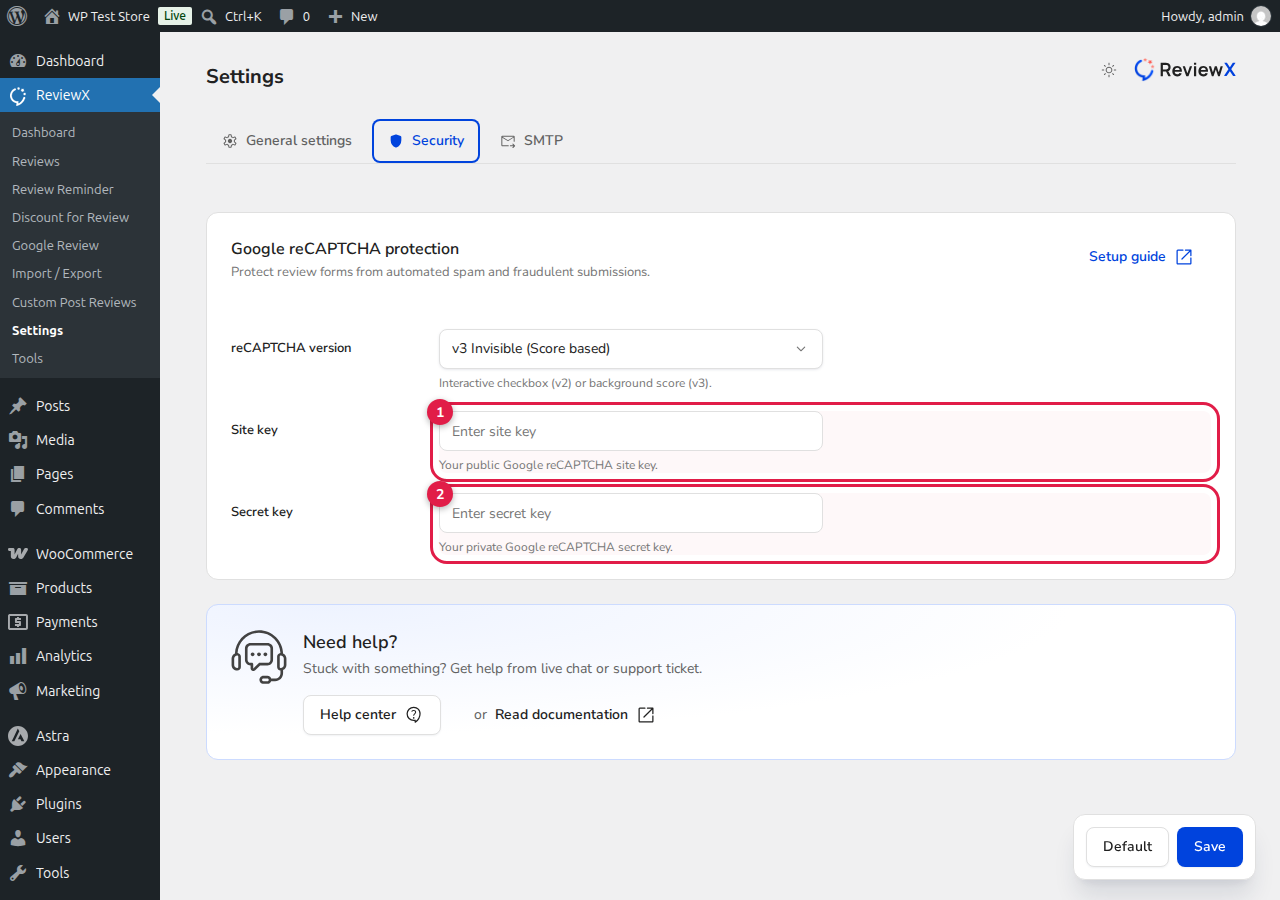
- [1] Site key: Enter your public Google reCAPTCHA site key.
- [2] Secret key: Enter your private Google reCAPTCHA secret key.
3. SMTP Tab
ReviewX allows you to route all outgoing review reminders and discount emails through your own dedicated SMTP server instead of relying on default PHP mail. This ensures maximum email deliverability:
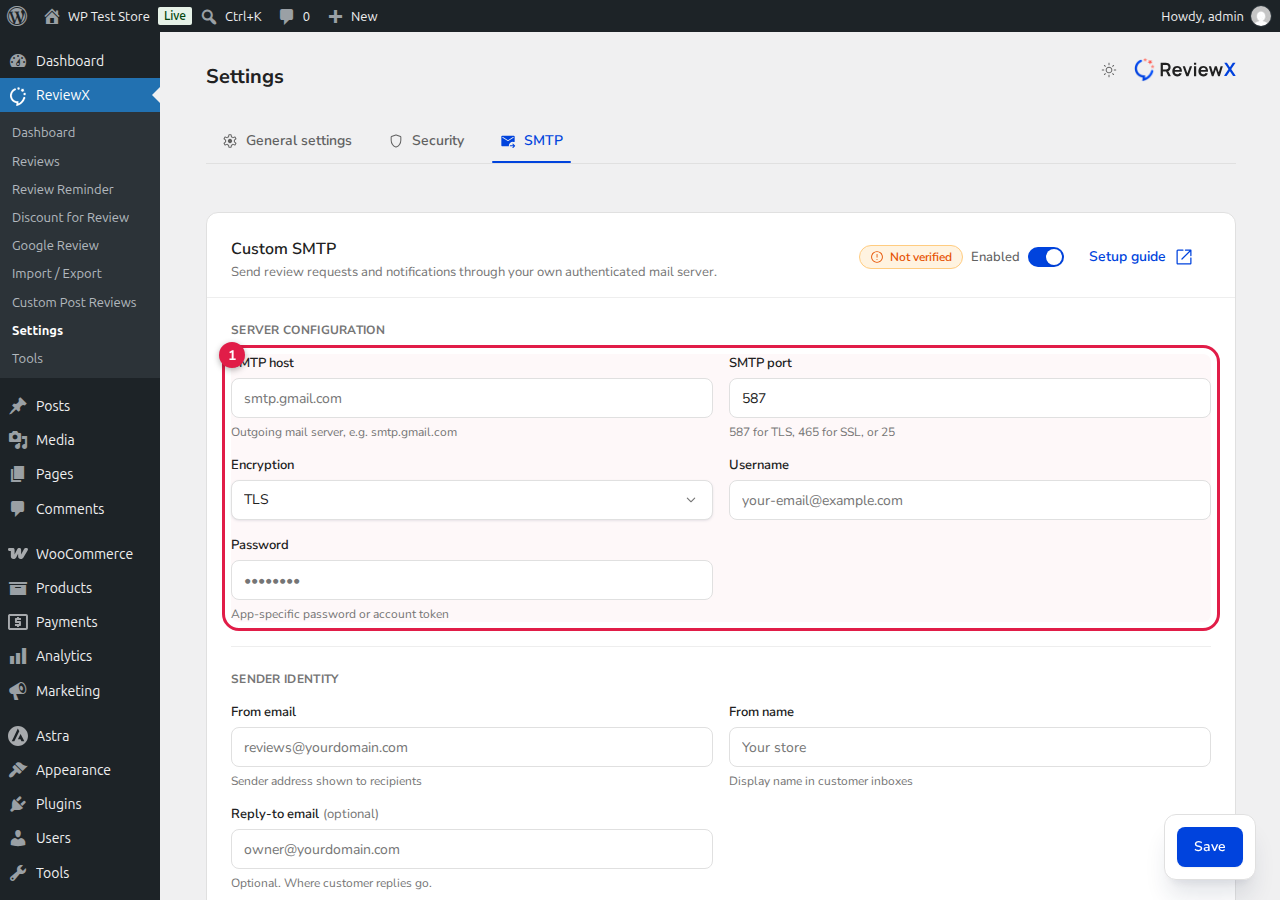
- [1] Server Configuration: Configure your SMTP Host (e.g.
smtp.gmail.com), Port (e.g.587), Encryption (TLS or SSL), Username, and App-specific Password. - Sender Identity: Set your From email, From name, and optional Reply-to email.
- Click Save at the bottom right to apply your custom mail server settings.


