


Public-facing WooCommerce review forms are high-value targets for automated spambots seeking to inject SEO backlinks, affiliate spam, and malicious links into comment threads. ReviewX provides enterprise-grade bot defense by integrating seamlessly with Google reCAPTCHA v3. Unlike intrusive v2 puzzle challenges, reCAPTCHA v3 operates entirely in the background, analyzing user behavior patterns to assign risk scores without interrupting authentic customers.
Thank you for reading this post, don't forget to subscribe!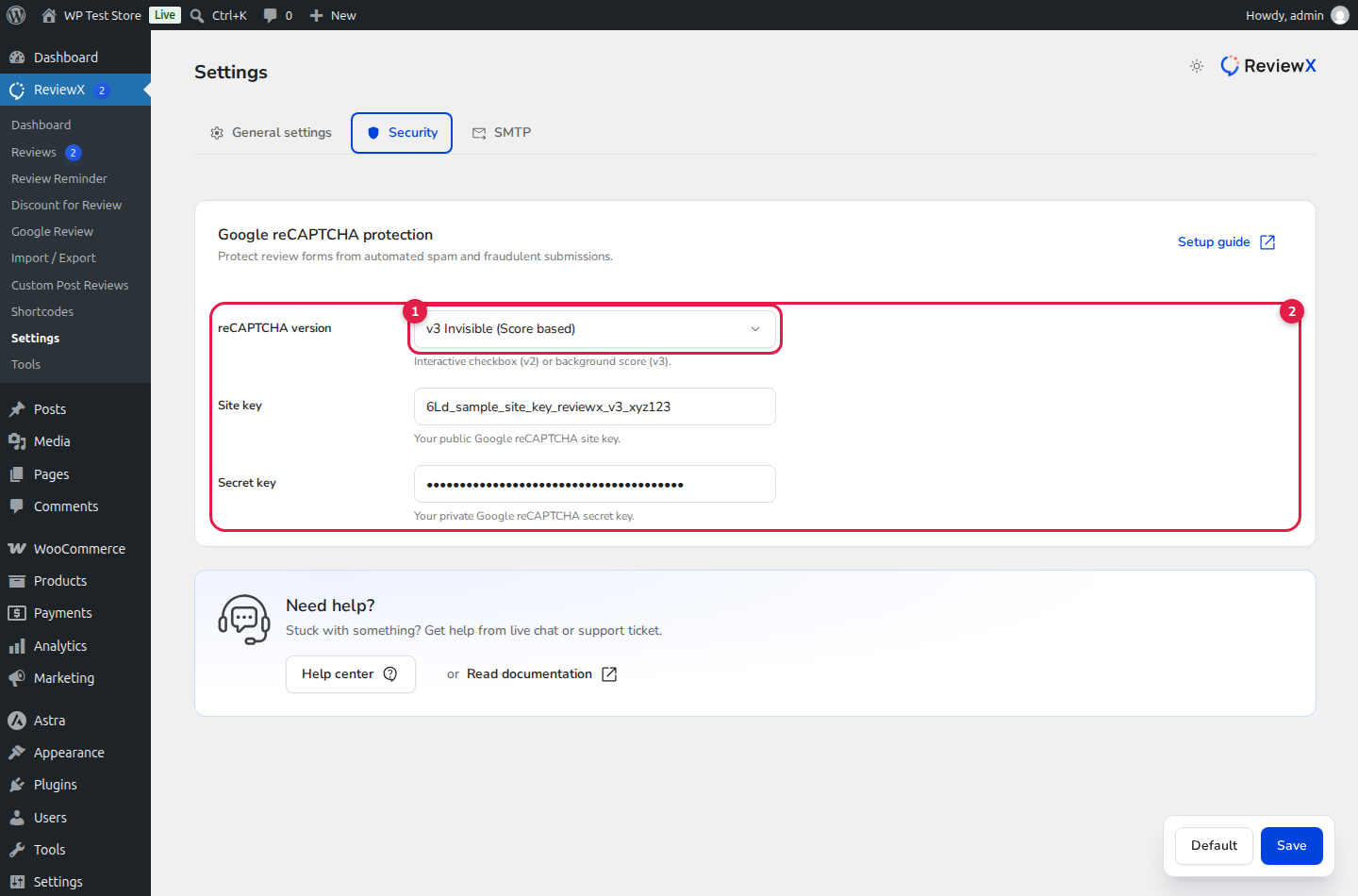
Zero Friction for Genuine Shoppers
Google reCAPTCHA v3 returns an automated risk score from 0.0 (likely bot) to 1.0 (likely human). Legitimate shoppers never have to click checkboxes or solve image puzzles, ensuring maximum review submission rates.
Step 1: Obtaining Google reCAPTCHA v3 API Keys
- Navigate to the Google reCAPTCHA Admin Console.
- Click Create (+) to register a new site.
- Label your property (e.g. My Store ReviewX Protection).
- Select reCAPTCHA v3 → Verify requests with a score.
- Add your exact store domain name (e.g.
mystore.com). - Accept the terms of service and copy your generated Site Key and Secret Key.
Step 2: Configuring Security in ReviewX
- From your WordPress admin dashboard, navigate to
ReviewX → Settings(admin.php?page=reviewx_settings). - Click on the Security tab at the top of the interface.
- In the reCAPTCHA version dropdown (marked with Badge 1), select v3 Invisible (Score based).
- Enter your credentials (marked with Badge 2):
- Site key: Paste your public Google reCAPTCHA v3 Site Key.
- Secret key: Paste your private Secret Key.
- Click Save at the bottom of the page to apply your credentials.
Step 3: Enabling reCAPTCHA on the Review Submission Form
Once your Google API credentials are saved under the Security tab, bind them to your storefront submission form:
- Navigate to
ReviewX → Reviews → Review settings. - Scroll down to the Enable reCAPTCHA setting row.
- Toggle the switch to ON.
- Select Google reCAPTCHA as your active protection type.
- Click Save. ReviewX will automatically load the invisible Google script on single product review tabs and custom shortcode forms.
Comparison: reCAPTCHA v2 vs reCAPTCHA v3
| Feature | reCAPTCHA v2 Checkbox | reCAPTCHA v3 Invisible (Recommended) |
|---|---|---|
| User Interaction | Requires clicking “I’m not a robot” and solving image puzzles. | 100% invisible; zero user effort required. |
| Mobile UX | Can be cumbersome on touchscreens and small displays. | Flawless mobile experience with zero layout shift. |
| Spam Filtration | Binary pass/fail challenge. | Continuous behavioral risk scoring that silently blocks automated submission bots. |


