


High email deliverability is vital for automated review collection. If your review reminder emails land in customer spam folders or bounce due to restrictive server limits, your submission rates plummet. ReviewX combines a high-speed SaaS cloud email infrastructure with full support for Custom SMTP relays, giving store owners complete control over delivery volume and domain authentication.
Thank you for reading this post, don't forget to subscribe!In this guide, you will learn how ReviewX email quotas work, how to monitor your monthly allowance in wp-admin, and how to connect an external SMTP service for unlimited email delivery.
How ReviewX SaaS Email Quotas Work
When you activate ReviewX, automated review reminder emails are processed and delivered via the secure ReviewX Cloud email cluster. This saves your WordPress hosting server from heavy PHP mail overhead.
- Monthly Allowance: Every plan tier includes a generous monthly quota (for example, Free accounts receive 50 emails/month, while Pro/Agency accounts receive expanded enterprise allowances).
- Monthly Reset Cycle: Your cloud email delivery quota automatically resets to 0 on the 1st day of each calendar month.
- Non-Intrusive Overflow: If your store surpasses its cloud quota before the month ends, ReviewX queues outgoing orders safely without dropping transactions.
Monitoring Email Quotas in WP Admin
You can check your live email sending metrics directly inside WordPress:
- Navigate to ReviewX → Review Reminder.
- On the default Request emails screen, inspect the Monthly email quota card at the top.
- The card displays your real-time usage (e.g.
0 / 200), active license tier (e.g. Agency Lifetime), and email sending health.
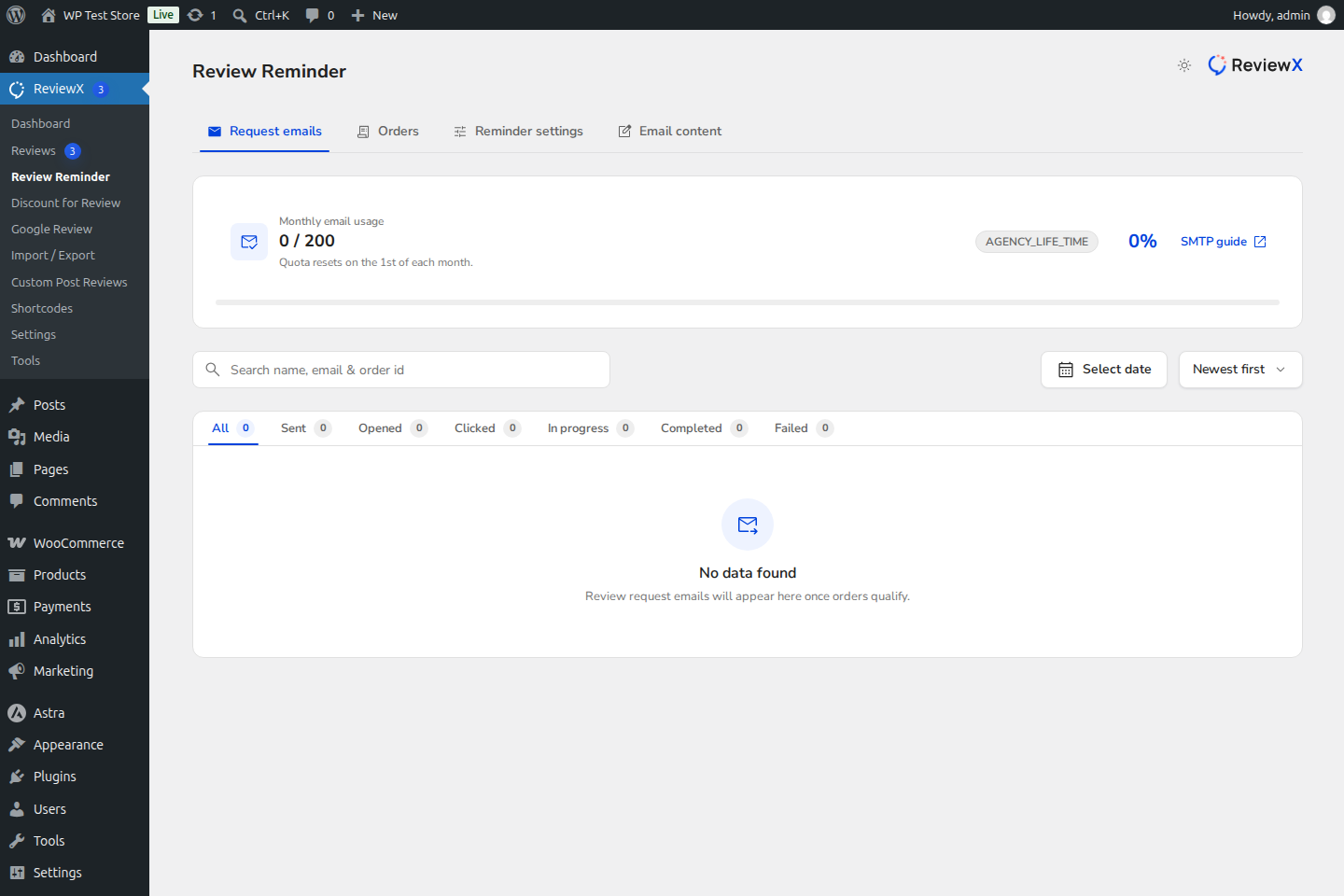
Figure 1: ReviewX Review Reminder dashboard showing: (1) Monthly email quota card with plan tier and live delivery count.
Why Switch to Custom SMTP?
While the built-in ReviewX Cloud delivery is ideal for turnkey setup, configuring your own Custom SMTP Relay unlocks major advantages:
- Unlimited Email Sending: Bypasses ReviewX SaaS cloud quota limits entirely, allowing you to send tens of thousands of reminders without restrictions.
- 100% In-Box Deliverability (Domain Authentication): Send emails directly from your own domain (e.g.,
reviews@yourstore.com) authenticated with your domain’s SPF, DKIM, and DMARC records. - Eliminate Spam Flags: Avoid shared cloud IP reputation issues by using dedicated transactional relays like SendGrid, Amazon SES, Mailgun, or Brevo.
Step-by-Step Custom SMTP Setup in ReviewX
To connect your own SMTP provider:
- Navigate to ReviewX → Settings → SMTP Settings.
- Toggle the switch to Enable Custom SMTP.
- Configure your SMTP credentials:
- SMTP Host: Enter your provider’s mail server hostname (e.g.,
smtp.sendgrid.net,smtp.mailgun.org, oremail-smtp.us-east-1.amazonaws.com). - Port: Typically
587for TLS (recommended) or465for SSL. - Encryption: Choose
TLSorSSLmatching your port selection. - Authentication: Toggle on to supply your SMTP Username and Password/API Key.
- From Email: Must match a verified sender address or authenticated domain on your SMTP provider.
- From Name: Your brand or store name displayed in the recipient’s inbox.
- SMTP Host: Enter your provider’s mail server hostname (e.g.,
- Click Save changes.
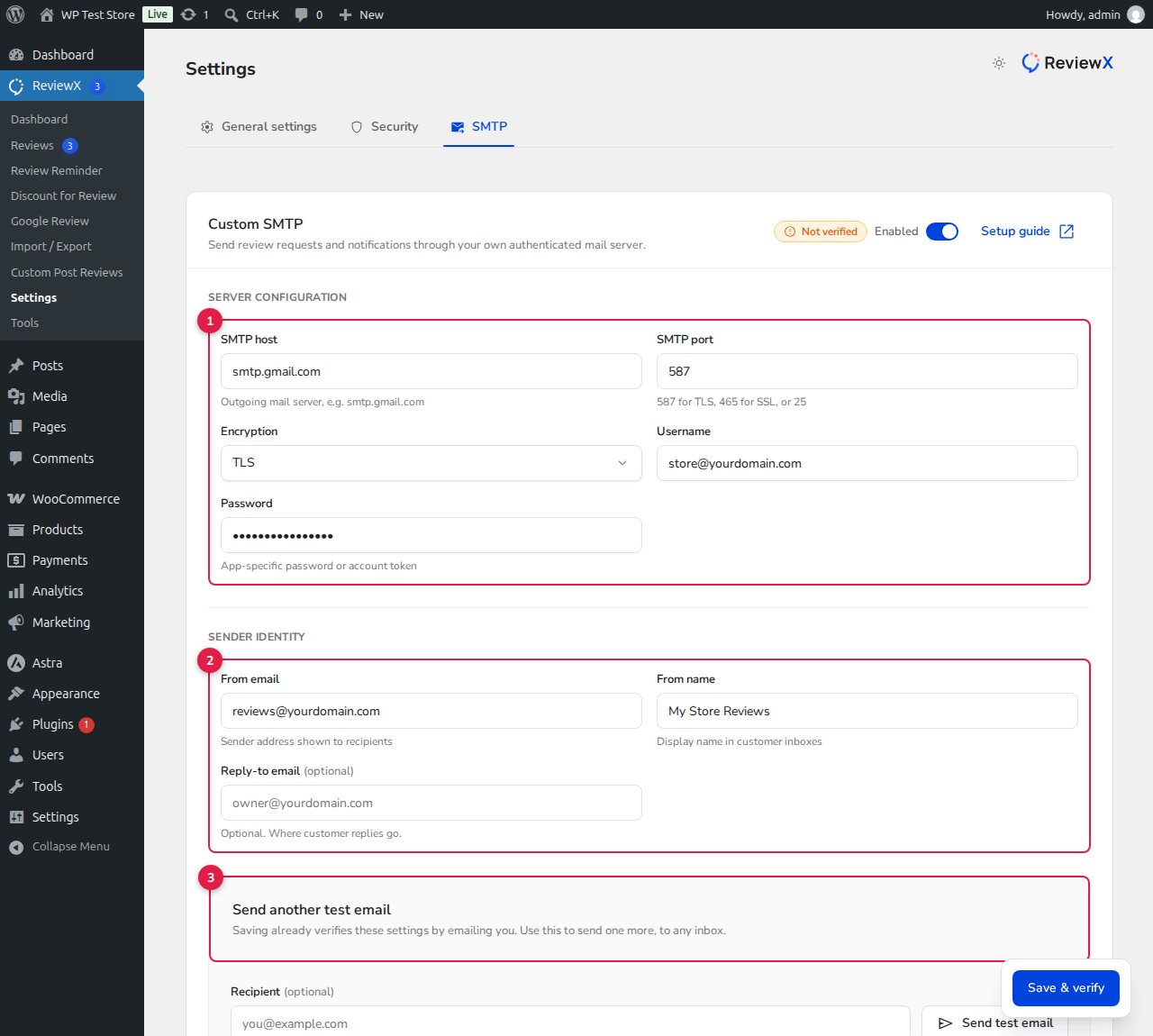
Figure 2: Custom SMTP configuration panel in ReviewX Settings allowing custom relay hosts and credentials.
Recommended SMTP Providers for High Volume Stores
| Provider | Host | Recommended Port | Highlights |
|---|---|---|---|
| SendGrid | smtp.sendgrid.net |
587 (TLS) | 100 emails/day free forever, robust analytics. |
| Amazon SES | email-smtp.region.amazonaws.com |
587 (TLS) | Extremely cost-effective ($0.10 per 1,000 emails). |
| Brevo (Sendinblue) | smtp-relay.brevo.com |
587 (TLS) | 300 emails/day free, strict deliverability safeguards. |
| Mailgun | smtp.mailgun.org |
587 (TLS) | Developer-centric, excellent log retention. |
Troubleshooting SMTP Delivery Failures
- Port Blocked by Web Host: Many shared hosting companies block outbound port 25 or 587. If connection tests fail, contact your hosting support or test port 465 with SSL.
- Mismatched “From” Address: Ensure your “From Email” address matches the domain verified in your SMTP account. If you configure
user@gmail.comwhile using SendGrid, servers will reject the transmission. - DNS SPF/DKIM Record Verification: Always verify that your domain’s DNS includes the TXT record required by your SMTP provider to prevent inbox spam routing.


