


Migrating customer reviews from another platform, importing historical sales feedback, or onboarding bulk testimonials into WooCommerce is fast and seamless with ReviewX’s 3-step CSV Import Wizard.
Thank you for reading this post, don't forget to subscribe!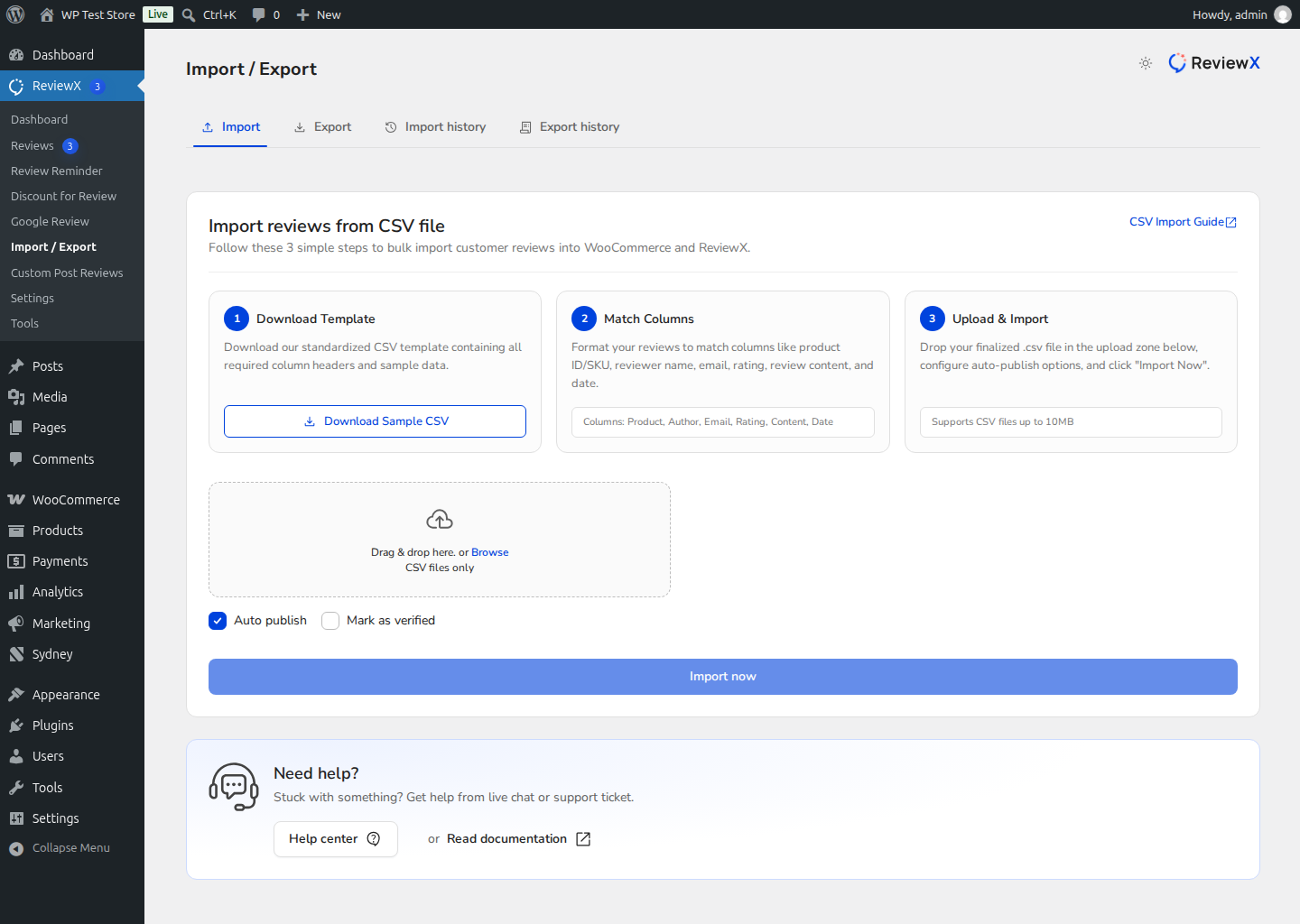
Step 1: Download the Standardized CSV Template
To ensure all review fields map accurately to WooCommerce and ReviewX Cloud, start with our official CSV template:
- In your WordPress admin menu, navigate to ReviewX → Import / Export.
- Under Card 1 (Download Template), click the Download Sample CSV button (or download directly from Review_Import_Template.csv).
- Open the downloaded file in Microsoft Excel, Google Sheets, or Apple Numbers.
Step 2: Match and Format Columns
Fill out or format your historical reviews to match the following column structure:
- product_id: The WordPress Post ID of the WooCommerce product (or the product SKU if configured).
- rating: Numerical review score from
1to5. - customer_name: Name of the customer who submitted the review.
- customer_email: Customer email address.
- review_title: (Optional) Short headline summarizing the review.
- feedback: The full customer review comment text.
- created_at: Date and time of review creation (formatted as
YYYY-MM-DD HH:MM:SS). - attachment: (Optional) Public image URLs separated by commas.
- review_reply: (Optional) Public store owner reply to the review.
Step 3: Upload and Execute Import
- In the Upload & Import section, drag and drop your finalized
.csvfile into the upload zone (or click browse to select it). ReviewX supports CSV files up to 10MB. - Configure import options:
- Auto publish: Check this option to immediately publish imported reviews to your live storefront widget. Leave unchecked if you prefer to hold them in Pending status for moderation.
- Mark as verified: Check this option to award imported reviews the official “Verified Owner” badge.
- Click the blue Import now button.
- The progress modal will display real-time import metrics. Once completed, your reviews are instantly accessible in ReviewX → Reviews and synchronized to ReviewX Cloud.
Import History & Revert Tool
If you made a formatting mistake in your CSV file, navigate to the Import History tab. ReviewX keeps an audit log of every CSV import batch, allowing you to review imported counts or revert an entire batch in a single click without affecting your existing native reviews.


