


Traditional eCommerce platforms restrict customer feedback to a single, generic 1-to-5 star rating. While a single rating provides a quick snapshot, it fails to explain why a customer loved or disliked a product. A pair of running shoes might receive 4 stars because the cushioning is incredible, but the sizing runs slightly small; a laptop might earn 5 stars for processing speed but 3 stars for battery longevity.
ReviewX solves this limitation with Multi-Criteria Reviews. Store owners can define multiple evaluation dimensions (such as Quality, Value, Fit, Durability, or Ease of Use) tailored specifically to their catalog. This guide walks you through adding, configuring, and organizing review criteria in ReviewX.
1. Review Criteria Architecture & Plan Allowances
ReviewX manages review criteria as modular rating scales. Each criterion is assigned a unique system key (e.g. criteria_1, criteria_2) and a customizable merchant label:
- Post-Type Scoped: Configure primary criteria for WooCommerce products, and distinct criteria sets for custom post types (such as Courses, Books, or Portfolios).
- Plan Capabilities:
- Free Plan: Allows essential core review criteria.
- Growth & Pro Plans: Unlocks unlimited custom review criteria to comprehensively evaluate complex or high-ticket items.
- Aggregate Calculation: Individual criteria scores are factored into the product’s overall rating and automatically reflected in Google Rich Snippets structured data.
2. Step-by-Step Guide: Adding Review Criteria
Follow these steps to enable and add new criteria to your store:
- From your WordPress dashboard, navigate to ReviewX → Reviews.
- Click on the Review settings tab in the upper toolbar.
- Scroll down to the Multi-criteria reviews row and ensure the switch is toggled ON.
- In the Multi-Criteria Editor, existing criteria are displayed with drag handles and name inputs.
- Click the + Add another criteria button at the bottom of the list.
- In the newly added input field, enter a clear, shopper-friendly label (e.g., Build Quality, Sizing Accuracy, Customer Service).
- To reorganize the order in which criteria appear to shoppers, click and hold the drag handle icon (
rvx-drag-handle) on the left of any row and drag it up or down. - Click Save at the bottom of the page to publish your criteria.
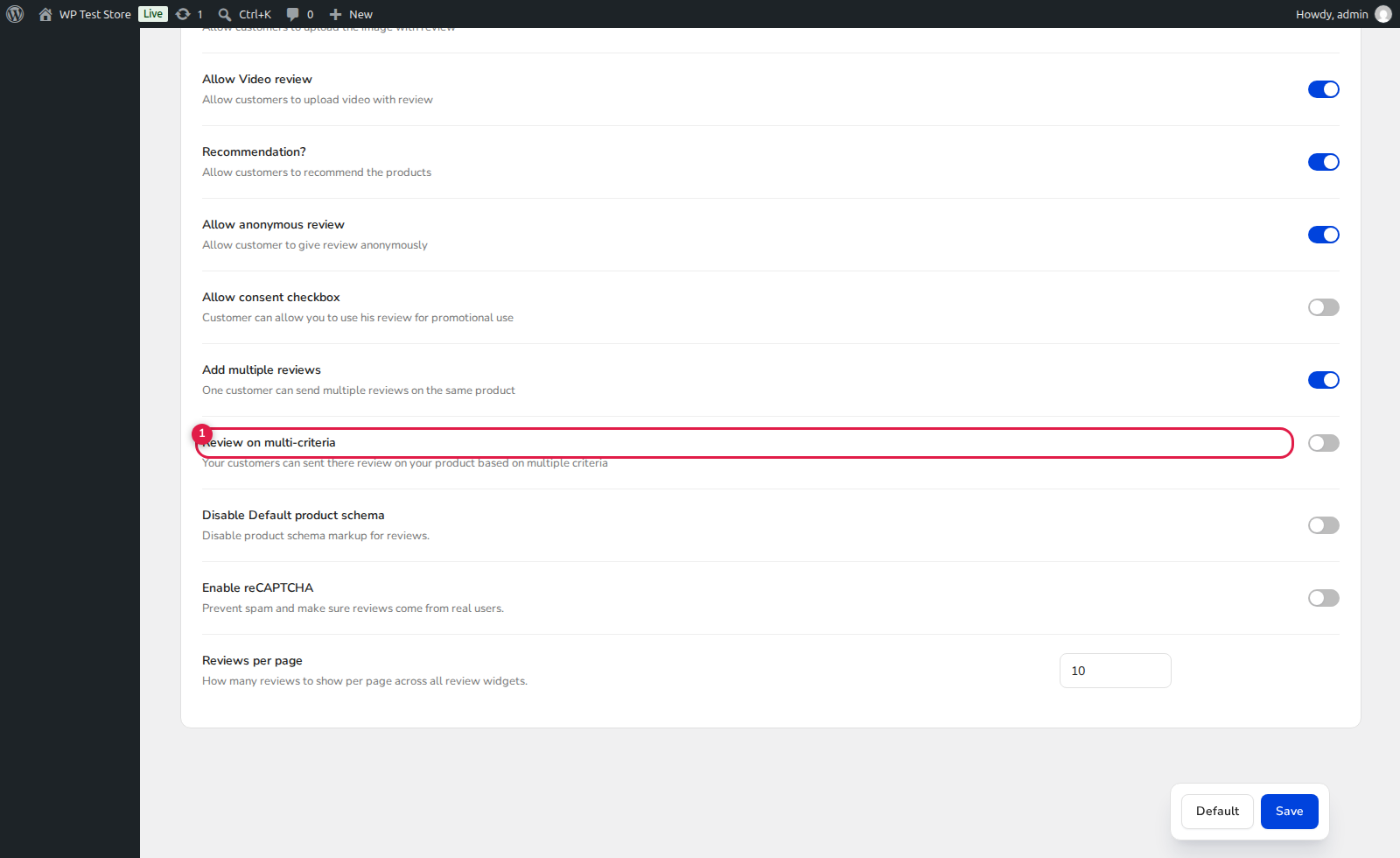
(1) Multi-Criteria Master Switch: Enables multi-dimensional rating across submission forms.
(2) Drag Handle (Reorder): Lets you change the visual priority of criteria instantly.
(3) Criteria Name Field: Customizable display label shown to reviewers and shoppers.
(4) Remove Criterion: Deletes an individual criteria item from future reviews.
(5) Add Another Criteria: Appends a new evaluation dimension up to your plan limit.
3. How Multi-Criteria Renders on Your Storefront
Once saved, your configured criteria automatically enhance your customer touchpoints:
- Review Submission Form: Shoppers encounter interactive star rating sliders for each individual criterion alongside the primary feedback textarea.
- Customer Review Cards: Each published review displays a clean visual breakdown of criteria scores next to the reviewer’s comment.
- Product Criteria Graph Widget: The criteria breakdown graph displays aggregate percentage bars for each metric, giving prospective buyers immediate confidence before purchase.
4. Best Practices for Choosing Review Criteria
While ReviewX Pro supports extensive criteria lists, testing indicates that asking customers to rate 3 to 5 key metrics achieves the highest completion rates. Selecting fewer than 3 limits insight, while demanding ratings for more than 5 can introduce form fatigue.


