


Displaying authentic Google reviews alongside your WooCommerce store testimonials creates unmatched social proof and reassures first-time shoppers. ReviewX features a native Google Reviews integration module that connects directly to Google Places API.
How to Connect Google Business Reviews
- In your WordPress admin sidebar, navigate to ReviewX → Google Review.
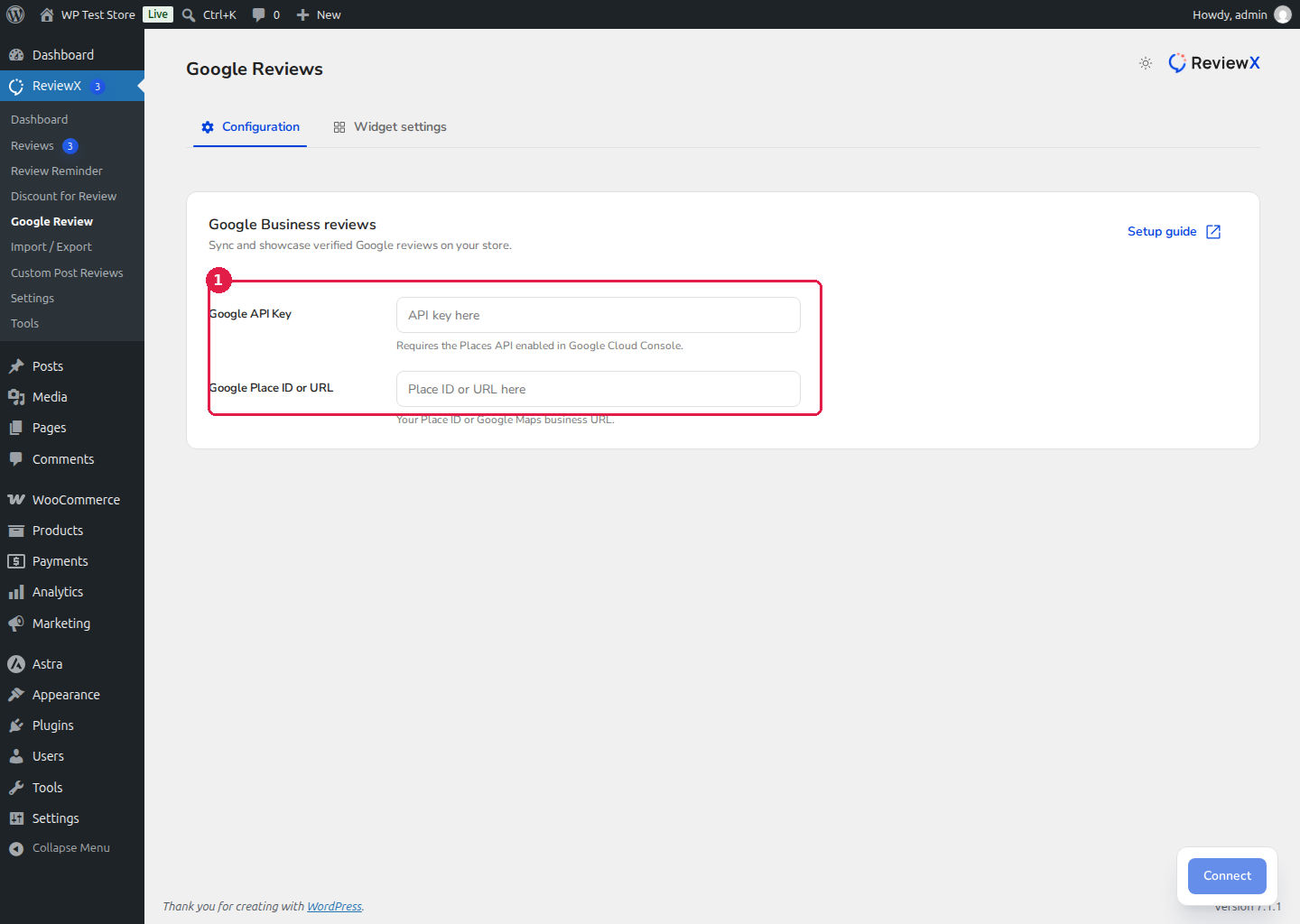
- Under the Configuration tab, you will see the Google Business reviews setup panel [1].
- Enter your credentials:
- Google API Key: Enter your Google Cloud Places API key. Ensure the Places API (New) is enabled in your Google Cloud Console.
- Google Place ID or URL: Enter your unique Google Maps Place ID or paste your public Google Maps business profile URL.
- Click the blue Connect button at the bottom right.
Displaying Google Reviews on Your Store
Once connected, navigate to the Widget settings tab within the Google Review screen. Here you can configure how imported Google reviews are displayed across your site — including rating thresholds (e.g. show only 4-star and 5-star Google feedback) and layout themes.


