


Activating your ReviewX Pro license key connects your WordPress WooCommerce store directly to the ReviewX SaaS cloud platform. This unlocks all Pro features — including AI Review Generation, Video Reviews, Multi-Criteria Rating, and Custom SMTP — and enables automated cloud data synchronization.
Step 1: Retrieve Your License Key #
Log in to your ReviewX Client Portal at client.reviewx.io. Navigate to the Licenses tab and copy your active license key. ReviewX license keys follow the standard format lk-xxxx-xxxxxxxx-xxxx.
Step 2: Launch the ReviewX Onboarding Screen #
In your WordPress admin sidebar, click on ReviewX. Whenever your site is not yet connected to the cloud, ReviewX automatically displays the Onboarding Wizard.
- If you are setting up a fresh store, you can step through the quick branding and layout setup, or click Skip to sign in » at the bottom of the screen.
- If your store already contains existing WooCommerce reviews migrating to ReviewX, the wizard automatically fast-tracks you directly to the license connection screen.
Step 3: Select “I have my license key” #
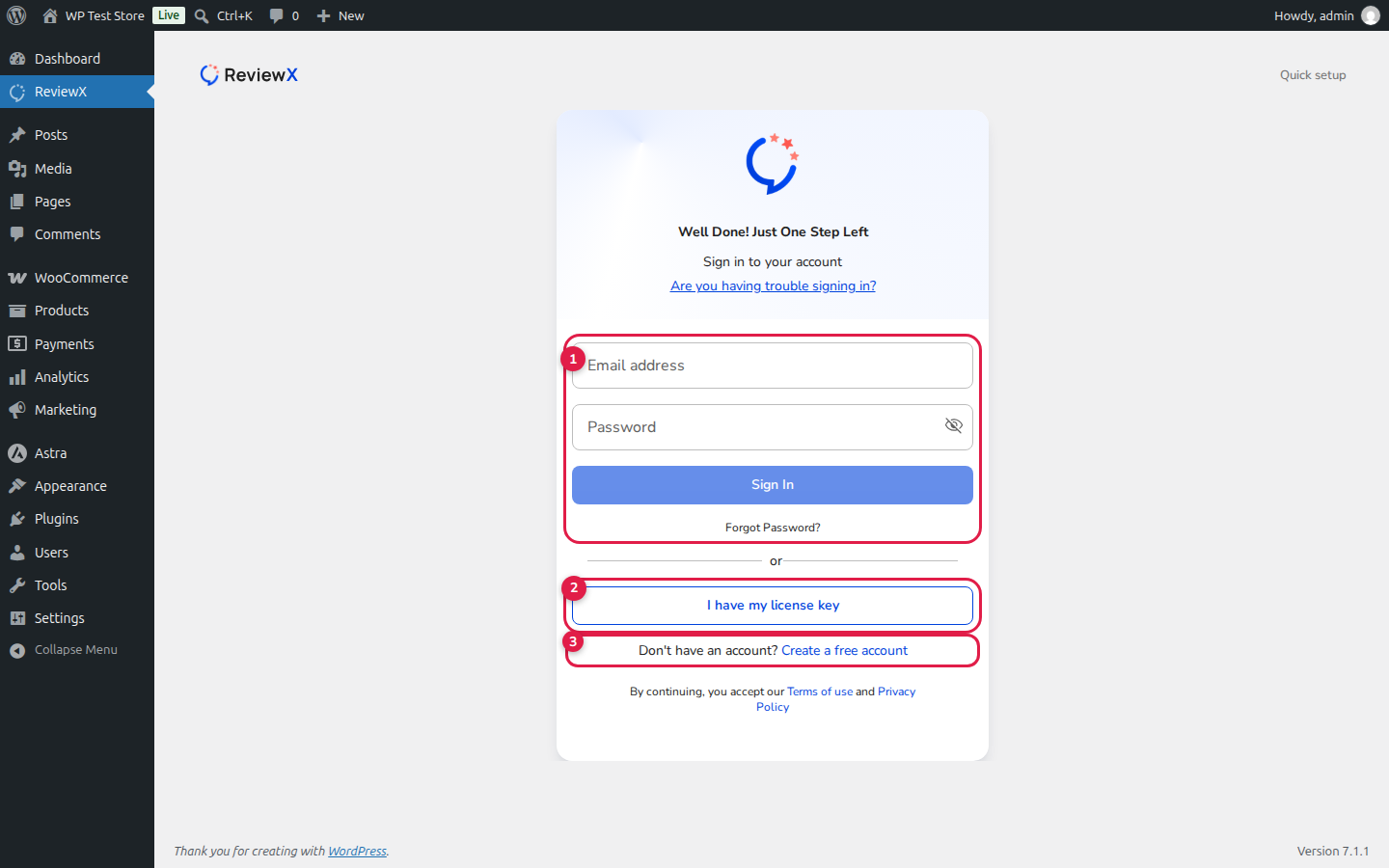
On the account connection card, locate the button labeled I have my license key (callout [2] above) directly below the standard login form. Click this button to transition to the dedicated license key input screen.
Step 4: Enter License Key and Click “Connect Me” #
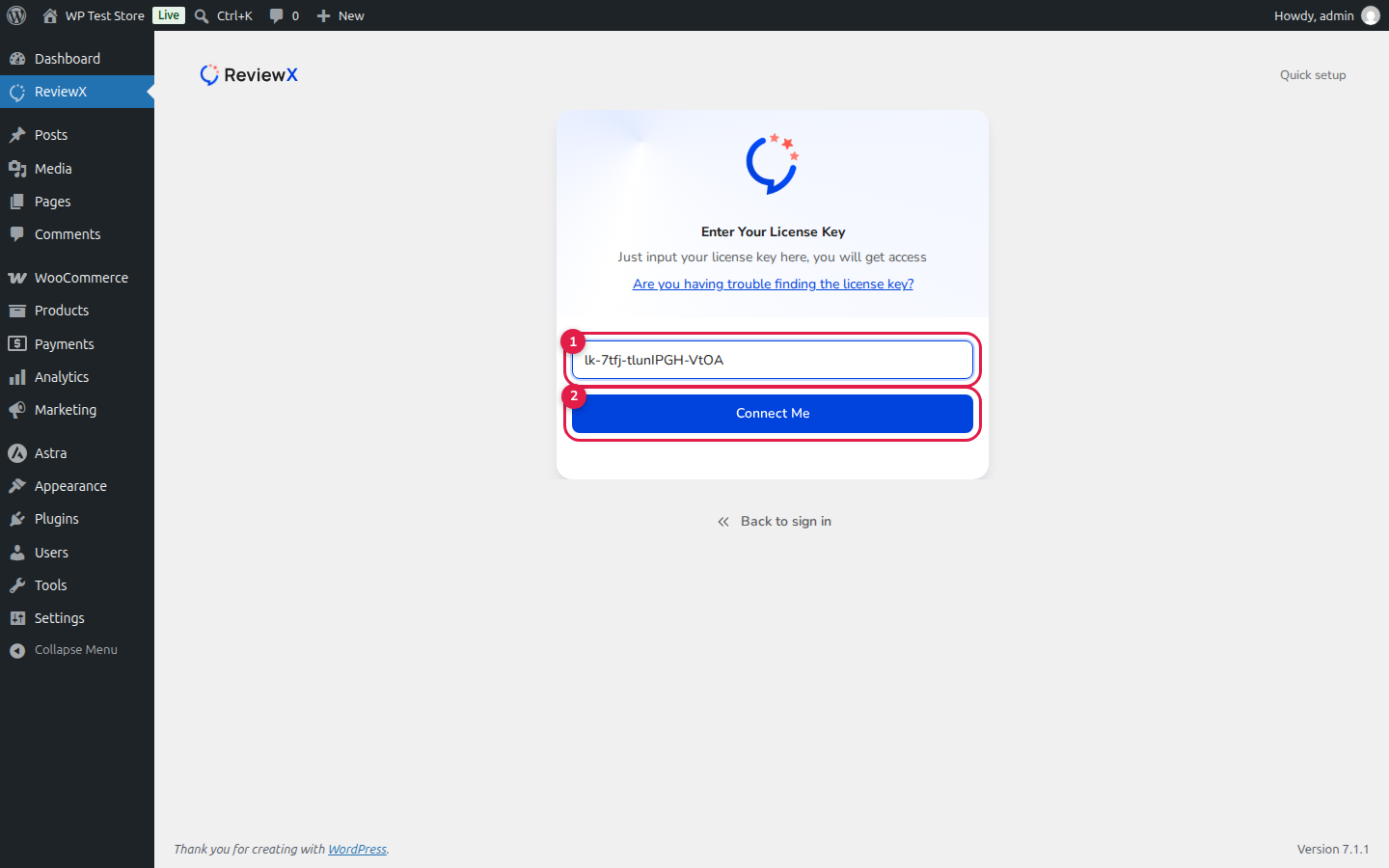
On the Enter Your License Key screen (shown in the first screenshot above):
- Paste your key into the input field marked with callout [1] (placeholder:
lk-xxxx-xxxxxxxx-xxxx). Ensure there are no accidental spaces before or after the key. - Click the blue Connect Me button marked with callout [2].
Step 5: Cloud Verification & Dashboard Unlock #
ReviewX securely transmits your key to the ReviewX SaaS API. Once validated:
- Your site credentials are saved in the WordPress database.
- The page automatically refreshes and presents the full ReviewX administrative dashboard.
- The background data sync initializes to catalog products, orders, and customer reviews.
Troubleshooting Activation Issues #
If the Connect Me button displays an error message:
- Invalid License Key: Double check that the key matches the
lk-xxxx-xxxxxxxx-xxxxformat exactly. - Site Reachability: Ensure your store has a valid public URL or tunnel. ReviewX cloud requires external HTTPS reachability to verify your site.
- Domain Limit Reached: Log into client.reviewx.io and verify that your plan has an unused site slot available.


