


When an online store accumulates dozens or hundreds of reviews on popular products, browsing through pages of mixed feedback becomes tedious for shoppers. Customers researching a purchase often want to see specific perspectives—such as 1-star critical reviews to evaluate worst-case scenarios, 5-star reviews to confirm quality, or reviews with real photos to verify product appearance. ReviewX features a highly customizable Storefront Filter & Sort Bar that gives shoppers instant control over how reviews are filtered and organized.
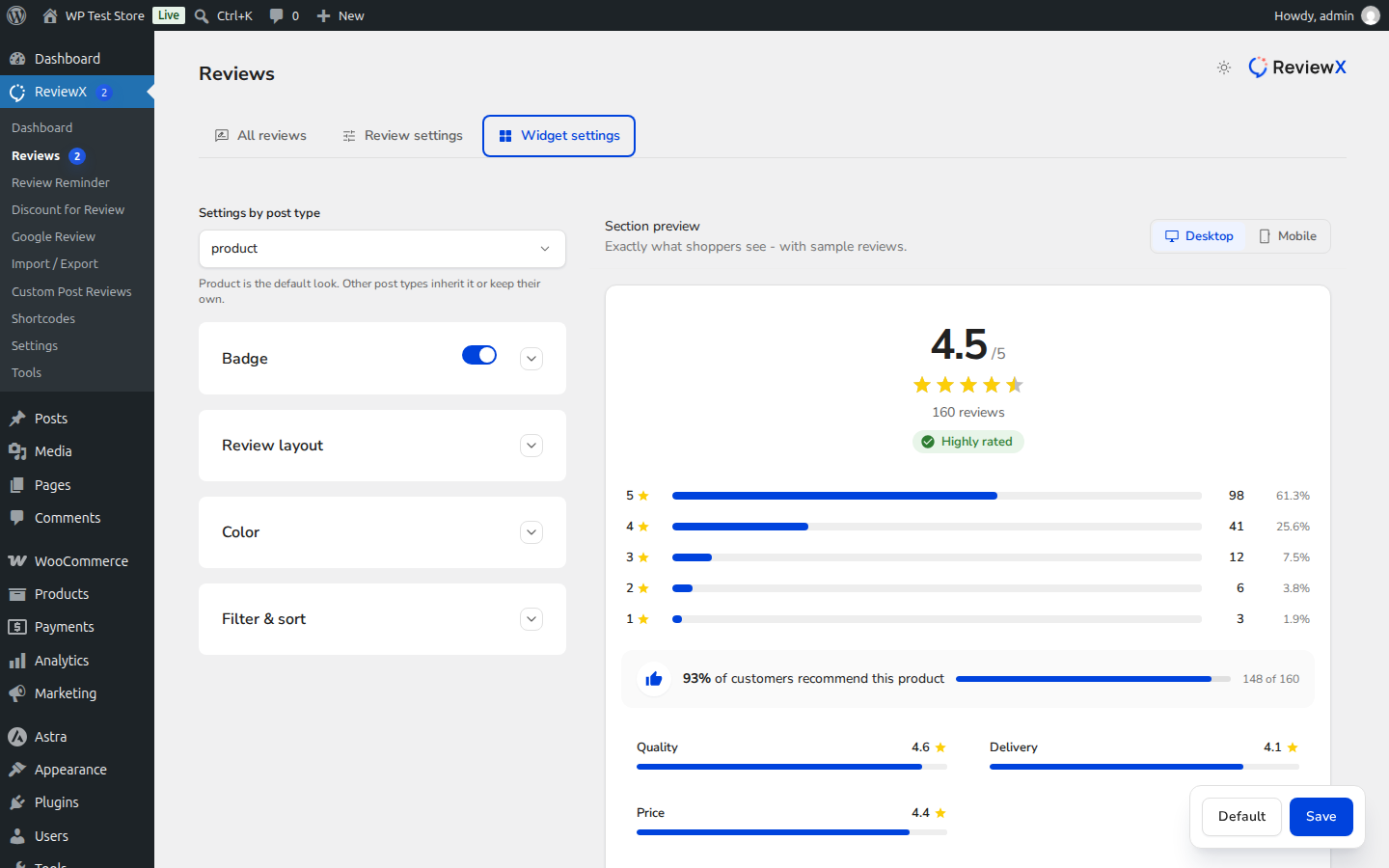
Elevating Storefront Conversion Rates with Frictionless UX
Enabling intuitive sorting and filtering allows customers to quickly find answers to their specific purchase questions, reducing customer support inquiries and minimizing cart abandonment.
Available Filter & Sort Options in ReviewX
ReviewX separates review navigation into distinct Filter and Sort controls:
| Feature | Option | Shopper Experience |
|---|---|---|
| Filter Options | By rating | Allows one-click filtering by star count (5 stars, 4 stars, 3 stars, 2 stars, 1 star). |
| By attachments | Filters reviews to show only those containing verified customer photos or videos. | |
| Sort Options | By rating | Sorts the review list by highest rating first or lowest rating first. |
| By time | Sorts reviews chronologically by newest first or oldest first. |
Step-by-Step Configuration Guide
Step 1: Open Widget Settings
Navigate to ReviewX → Reviews in your WordPress admin dashboard and click on the Widget settings tab.
Step 2: Expand the Filter and Sort Panel
Click on the Filter and sort disclosure card to expand the settings panel.
Step 3: Configure Filter Options
Under Filter options (marked with Badge 1), check your desired controls:
- By rating: Displays star breakdown filters on the review tab.
- By attachments: Displays the “With Photos / Videos” quick toggle.
Step 4: Configure Sort Options
Under Sort options (marked with Badge 2), select your active sorting modes:
- By rating: Adds highest and lowest rating sort options to the dropdown.
- By time: Adds newest and oldest chronological sorting.
Step 5: Save Widget Settings
Click Save changes to publish your navigation configuration. The filter and sort bar will immediately render on all WooCommerce single product pages.
Mobile Optimization & Performance
All ReviewX filter and sort interactions operate asynchronously via lightweight AJAX calls. When a customer selects a filter or alters the sort order, ReviewX updates the review list dynamically without triggering a complete page refresh, delivering a native app-like experience on mobile and desktop alike.


