


Visual reviews featuring customer photos and unboxing videos deliver the highest conversion impact in modern e-commerce. Shoppers want to see how clothes fit real bodies, how home decor looks in authentic lighting, and how products perform in real life. However, high-resolution media uploads must be carefully balanced with server storage, hosting bandwidth, and site speed. ReviewX provides comprehensive controls for photo and video reviews, allowing you to set file upload guidelines, manage accepted media formats, and protect server performance.
Conversion Impact of Visual Reviews
Shoppers who interact with customer photos and videos are 2.4x more likely to complete a purchase, with an average 18% reduction in returns caused by inaccurate visual expectations.
ReviewX Media Architecture & Supported Formats
ReviewX supports modern image and video file formats natively:
| Media Category | Supported Formats | Recommended Guidelines |
|---|---|---|
| Photo Reviews | JPEG, JPG, PNG, WebP | Max 5MB per image. WebP and compressed JPEG recommended for fast mobile loading. |
| Video Reviews | MP4, WebM, MOV | Max 25MB per video clip (standard 15–60 second unboxings or demos). |
Configuring Photo and Video Reviews in ReviewX
Step 1: Access Review Settings
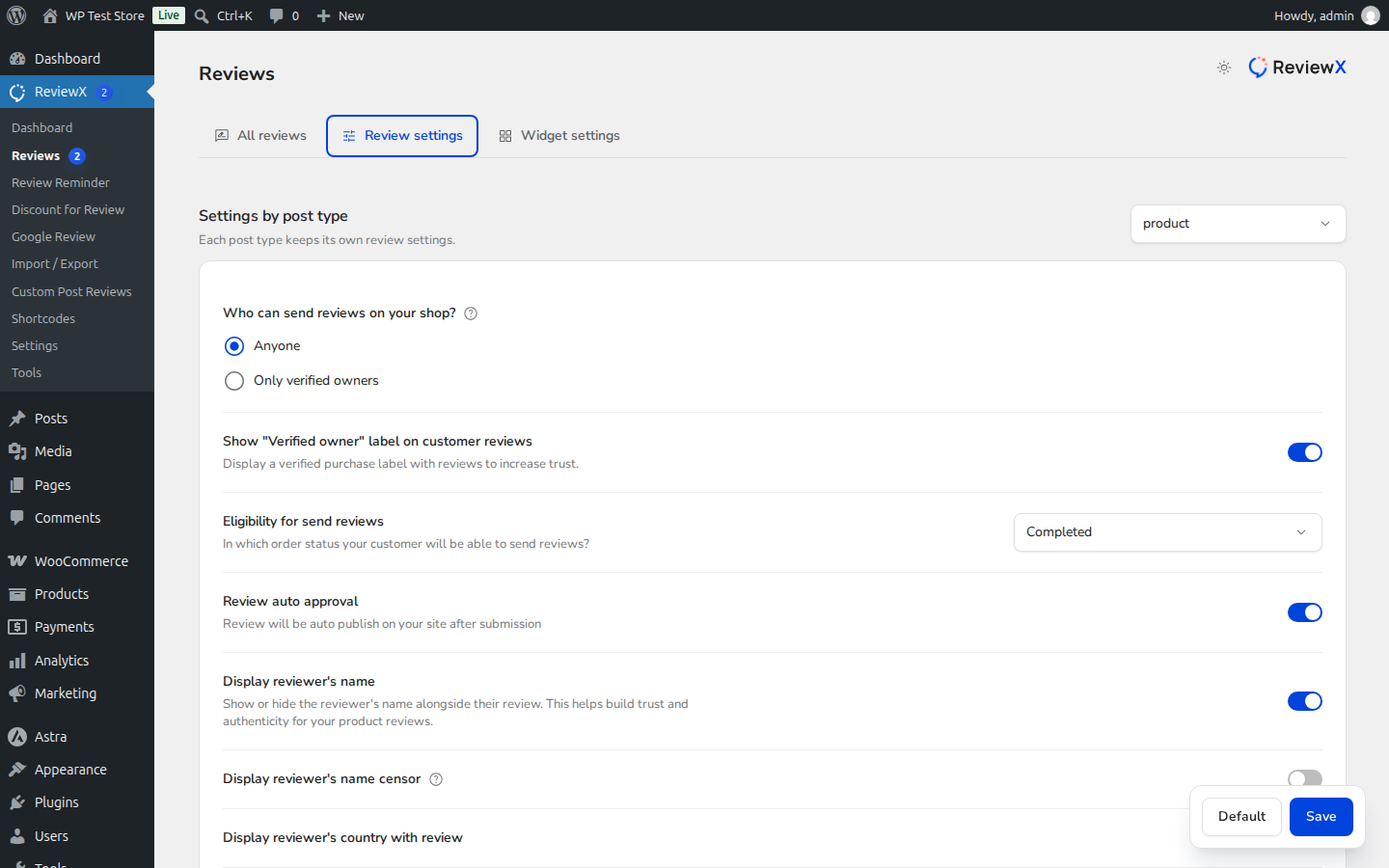
Navigate to ReviewX → Reviews and open the Review settings tab.
Step 2: Enable Photo Reviews
Locate the Allow photo reviews option (marked with Badge 1). Toggle the switch to ON to enable customer image uploads in the review submission modal.
Step 3: Enable Video Reviews
Locate the Allow video reviews option directly below (marked with Badge 2). Toggle the switch to ON to allow customers to upload short video clips with their testimonials.
Step 4: Save Settings
Click Save changes at the bottom of the page.
Managing Server Upload Limits in WordPress
Customer media uploads respect your WordPress hosting environment’s maximum upload ceiling. If customers report errors uploading videos or high-resolution photos, ensure your server configuration allows sufficient file sizes:
upload_max_filesize: Set to at least32Mor64Min yourphp.inior hosting control panel.post_max_size: Set to at least64Mor128M(always equal to or larger thanupload_max_filesize).max_execution_time: Set to120or300seconds to prevent timeouts during mobile video uploads.
Moderating Customer Media in the ReviewX Dashboard
All submitted media attachments can be reviewed before or after publication:
- Navigate to ReviewX → Reviews to view the review table.
- Reviews containing media display thumbnail indicators in the attachment column.
- Click on any thumbnail to preview the image or play the video clip in the moderation modal.
- If an attachment violates store guidelines, you can edit the review, remove the attachment, or unpublish the review permanently.


