


When sending automated customer emails — such as post-purchase review requests, follow-up reminders, photo review prompts, and discount coupon rewards — sender branding is crucial for deliverability and trust. Emails dispatched from a default, impersonal address like wordpress@yourdomain.com or no-reply@server.local often trigger spam filters and result in low open rates.
Customers are significantly more likely to open and complete a review request when the email comes from a recognized brand persona (e.g. “Emma from Lumina Cosmetics”) and a verified company inbox (e.g. care@luminacosmetics.com). This guide explains how to customize your sender name and email address in ReviewX using built-in SMTP or WordPress filter hooks.
1. Method 1: Using ReviewX Custom SMTP Settings (Recommended)
The cleanest and most robust method to configure your sender identity is by connecting your own SMTP relay directly inside ReviewX. When Custom SMTP is enabled, ReviewX bypasses default server mail routines and delivers emails through your authenticated provider (such as SendGrid, Amazon SES, Postmark, Google Workspace, or Mailgun):
- From your WordPress dashboard, navigate to ReviewX → Settings.
- Click on the SMTP tab in the navigation bar.
- Toggle Enable custom SMTP to the active position.
- Configure your branded sender identity:
- Sender Name (From Name): Enter your official store or representative name (e.g., UrbanWear Customer Care).
- Sender Email (From Email): Enter your authorized business email address (e.g.,
reviews@urbanwear.com).
- Enter your SMTP server host, port (e.g.,
587or465), encryption type (TLS/SSL), and login credentials. - Click Save & Send Test Email to verify successful delivery.
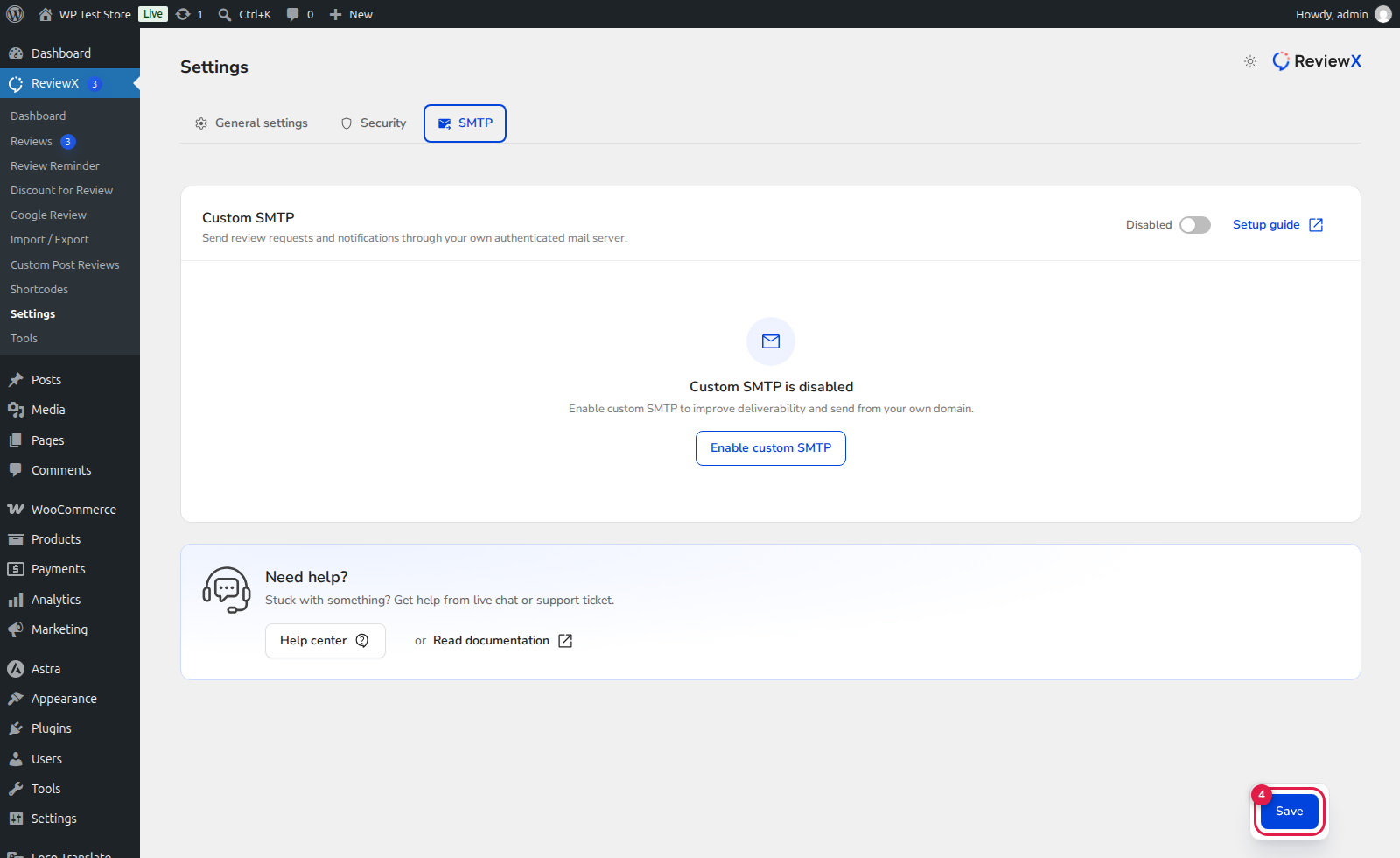
(1) Sender Name: Display name visible in the customer’s email inbox.
(2) Sender Email: Authenticated reply-to and from address.
(3) SMTP Server Host & Port: Relay connection settings for zero-limit delivery.
(4) Save Settings: Immediately updates the active mail transport.
2. Method 2: Programmatically Changing Sender Info via WordPress Hooks
If you prefer using your WordPress server’s default mail configuration or rely on native PHP wp_mail(), you can override the sender name and email address using lightweight filter hooks in your child theme’s functions.php or via the Code Snippets plugin:
/**
 * Change Default WordPress Sender Email Address
 */
add_filter( 'wp_mail_from', function( $original_email ) {
    return 'reviews@yourbrand.com';
} );

/**
 * Change Default WordPress Sender Name
 */
add_filter( 'wp_mail_from_name', function( $original_name ) {
    return 'YourBrand Team';
} );
wp_mail_from belongs to the same domain as your website (e.g., @yourbrand.com) to prevent SPF and DMARC alignment failures.
3. Method 3: Integrating with Third-Party SMTP Plugins
If your WordPress site already uses an established SMTP plugin (such as WP Mail SMTP, FluentSMTP, or Easy WP SMTP):
- Configure your From Name and From Email inside that plugin’s master settings.
- Check the option labeled “Force From Name” and “Force From Email”.
- All transactional emails dispatched from your WordPress environment will automatically adopt the forced branded identity.


