


Your ReviewX Client Portal profile contains your account identity, primary notification email address, and security credentials. Keeping this information current ensures you never miss critical billing receipts, license quota notifications, or security alerts.
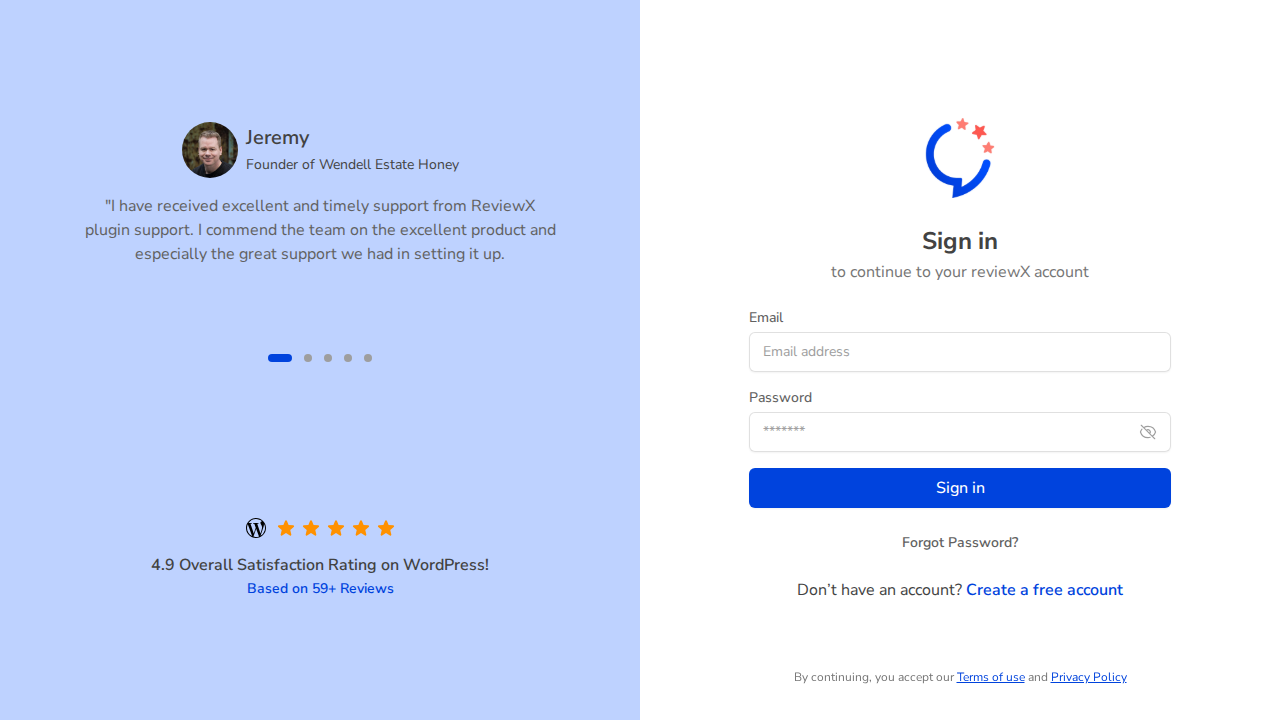
Figure 1: ReviewX Client Portal account authentication and profile management hub.
Step 1: Open Your Profile Settings
- Log in to the ReviewX Client Portal.
- Click on your name or avatar in the upper right-hand corner and select Profile Settings (or click Settings in the sidebar).
Step 2: Update Personal and Company Information
- Full Name: Update your first and last name. This name appears on all official invoices generated for your account.
- Company / Organization: Enter your registered business name for commercial invoicing.
- Email Address: If you change your email, ReviewX dispatches a verification email to the new address before applying the change to prevent unauthorized account takeovers.
Step 3: Update Account Password
To refresh your security password:
- Scroll to the Change Password section.
- Enter your Current Password.
- Enter your New Password (minimum 8 characters, recommended combination of uppercase letters, numbers, and symbols).
- Re-enter to confirm, then click Save Changes.


