


A ReviewX license key connects your WordPress plugin to a paid plan without needing to enter your Client Portal email and password on client sites — making it the ideal activation method for agencies, freelancers, and multi-store managers.
Thank you for reading this post, don't forget to subscribe!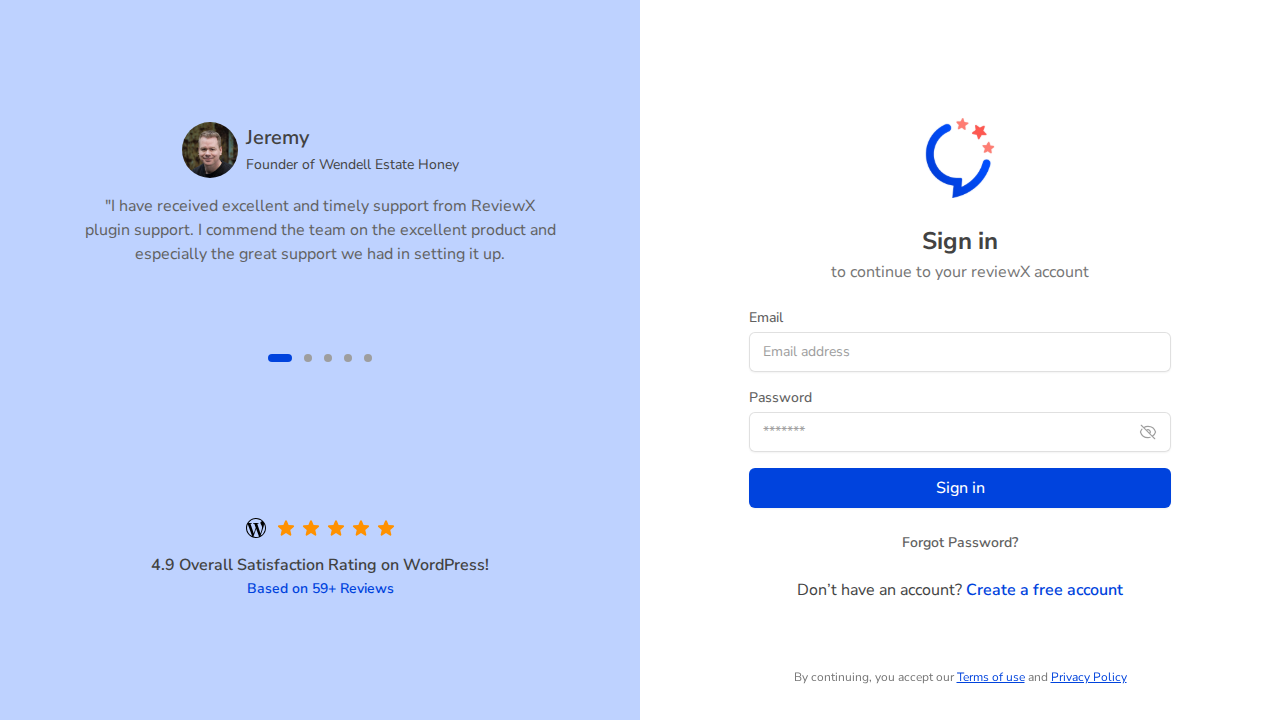
Step 1: Sign in to the Client Portal
Visit portal.reviewx.io and log in using your registered email address and password.
Step 2: Navigate to the Licenses Tab
From the portal sidebar or dashboard, click Licenses. This section displays your plan details (e.g. Agency Lifetime, Pro Annual), total allotted site slots, and active domains.
Step 3: Copy or Generate Your License Key
Locate your license key starting with the prefix lk- (e.g., lk-7tfj-tlunIPGH-VtOA). Click the copy icon to copy the key to your clipboard.
Step 4: Activate in Your WordPress Store
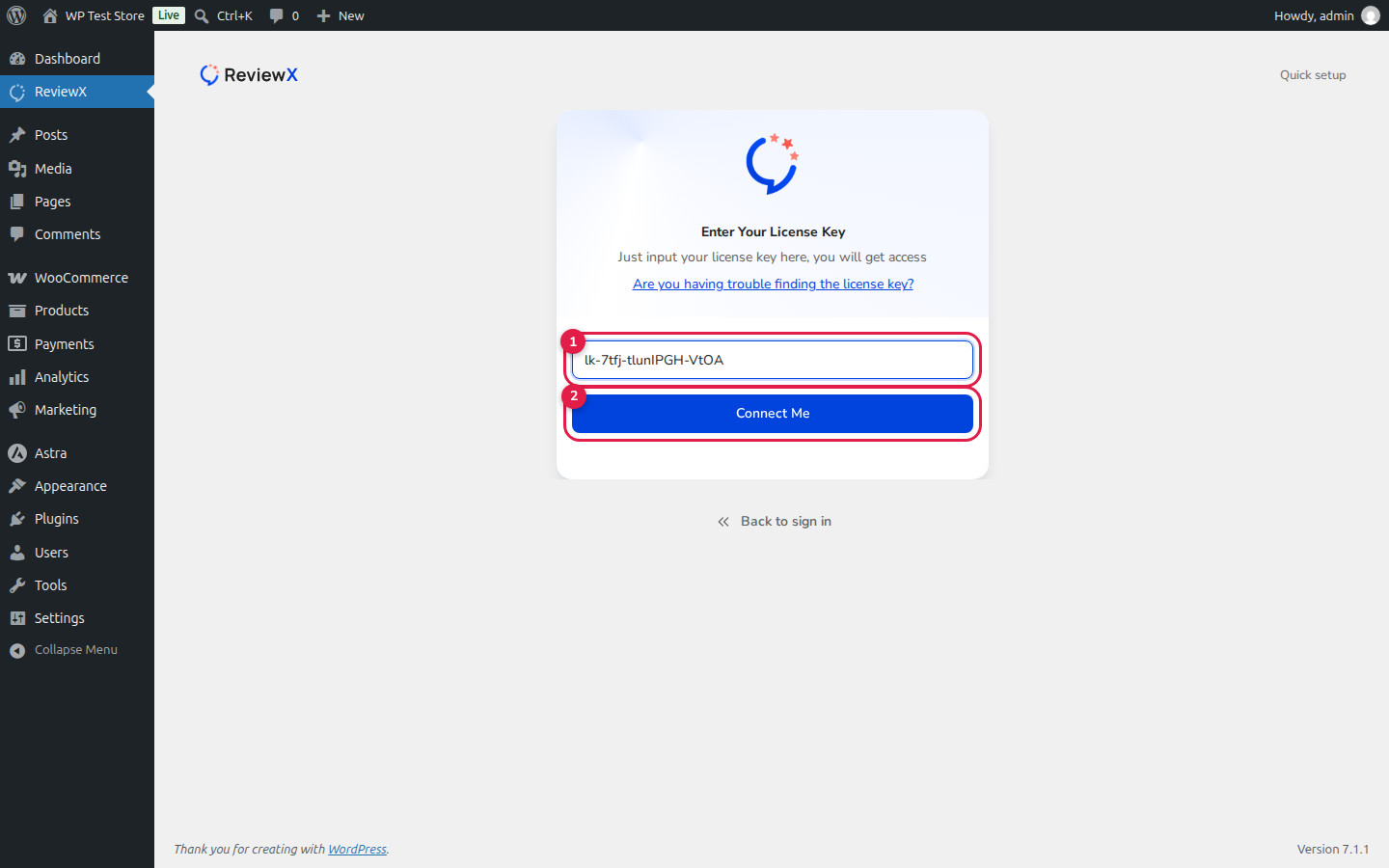
In your target WordPress store:
- Navigate to ReviewX in the WordPress admin menu to open the Onboarding Wizard.
- Proceed to the sign-in step or click Skip to sign in ».
- Click I have my license key.
- Paste your copied key into input field [1].
- Click Connect Me (callout [2]) to instantly authorize the store.


