


Requiring customers to create a user account and log in before leaving product feedback can severely reduce review submission rates. Many online shoppers prefer quick guest checkouts and will abandon the review process if confronted with registration forms or forgotten password prompts.
ReviewX enables store owners to accept authentic reviews from non-registered guest users while maintaining strong anti-spam defenses, multi-criteria evaluations, and media attachments.
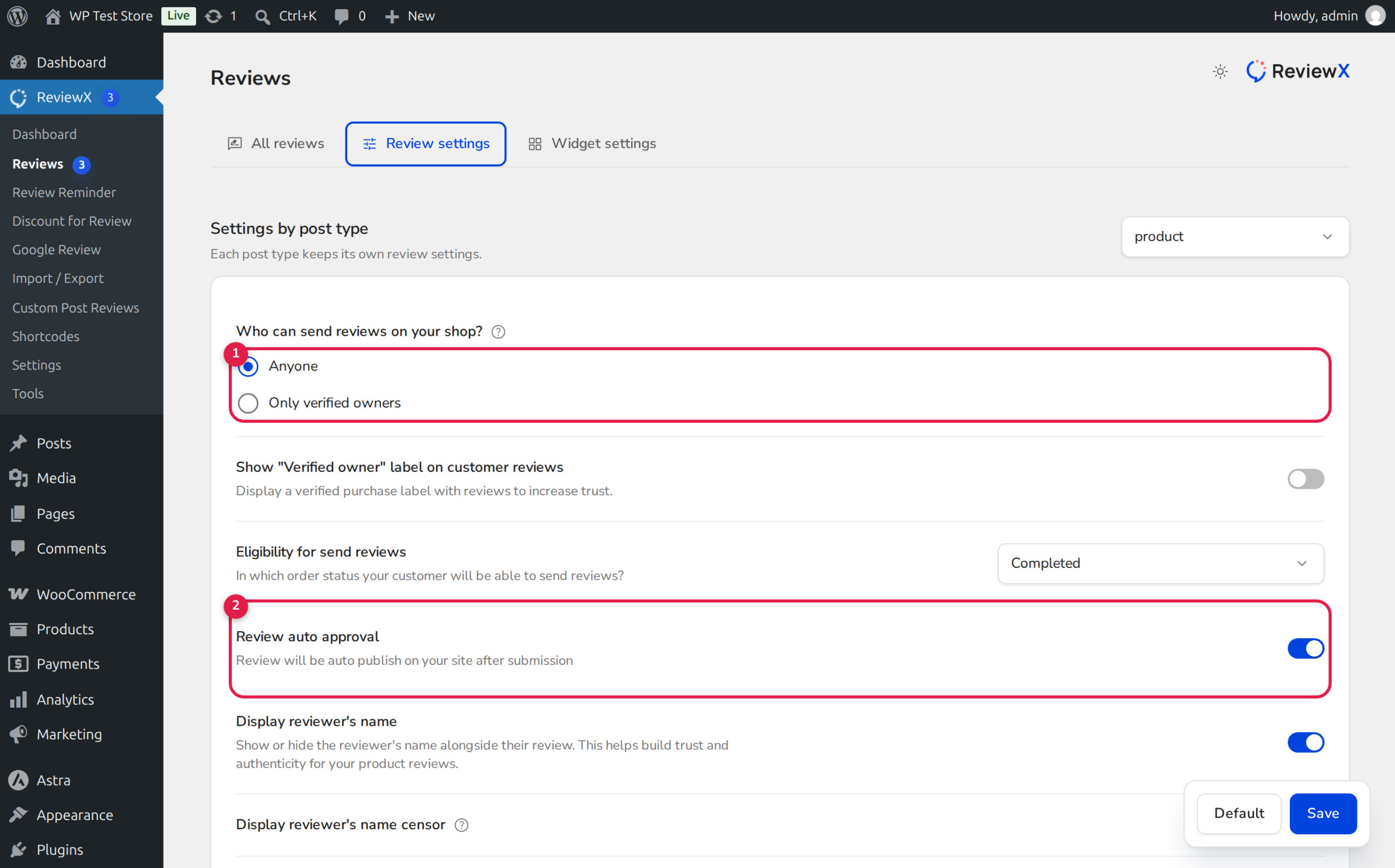
Essential Best Practice: Enable reCAPTCHA & Moderation
When accepting reviews from anyone (including non-registered users), always pair the setting with Google reCAPTCHA v2 / v3 or Math-based reCAPTCHA and set Review auto approval to OFF. This ensures all incoming guest reviews enter a moderation queue where administrators can verify their legitimacy before they go live on your storefront.
How ReviewX Handles Guest Reviewers
ReviewX includes a robust data architecture designed specifically for non-registered users:
- Guest Submission Form: When non-registered users open the review form on single product pages, ReviewX renders clean input fields for Name and Email Address alongside ratings, criteria sliders, and photo upload zones.
- SaaS Identity Tracking: ReviewX generates a unique guest identifier using
CustomerPayload::guest($email, $name)with a deterministic hash based onmd5(lowercase email). - Account Migration Resilience: If a guest shopper later registers for an account using that same email address, ReviewX automatically maps their historical guest reviews to their new user profile.
- Moderation Queue: Guest submissions are saved in
wp_commentswithcomment_approved = 0(pending), triggering an admin notification for prompt review and approval.
Step-by-Step Guide: Enabling Guest Reviews
Step 1: Open Review Settings
In your WordPress admin panel, go to ReviewX → Reviews and click on the Review settings tab.
Step 2: Set Submission Policy to “Anyone”
Under Who can send reviews on your shop? (marked with Badge 1 in the illustration above):
- Select the Anyone radio button.
- This opens review submission capabilities to all visitors, including guest purchasers and non-registered shoppers.
Step 3: Configure Review Auto-Approval
Locate the setting titled Review auto approval (marked with Badge 2):
- For guest reviews, we strongly recommend toggling this switch OFF.
- Incoming guest submissions will be held in pending status until approved by a store administrator under ReviewX → Reviews → Pending.
Step 4: Enable reCAPTCHA Protection
Navigate to ReviewX → Settings → Security Settings and activate Google reCAPTCHA or select Math-based reCAPTCHA. This prevents automated spam bots from flooding your product pages with low-quality comments.
Step 5: Enable Consent Checkbox (GDPR Compliance)
In Review settings, scroll down to Allow consent checkbox and switch it ON. This adds a GDPR-compliant opt-in checkbox confirming that the customer consents to having their name, email, and review stored and displayed on your website.
Step 6: Save Settings
Click Save to activate guest review capabilities across your storefront.
Guest Moderation Workflow
Managing incoming guest reviews in ReviewX is quick and straightforward:
| ReviewX Admin Action | Description | Storefront Impact |
|---|---|---|
| Approve | Accepts the review and moves it to published status. | Immediately visible on the product page and included in aggregate star scores. |
| Spam | Marks submission as spam and flags the IP/email. | Permanently hidden from storefront and excluded from ratings. |
| Trash | Moves review to the trash bin for eventual deletion. | Omitted from product reviews and statistics. |
Frequently Asked Questions
Will guest reviews receive a Verified Owner badge?
If the guest buyer enters the exact email address used during a past WooCommerce checkout, ReviewX automatically identifies the order and attaches the Verified Owner badge. If the guest has no matching purchase record, the review is published without the verified badge.
Can non-registered users upload photos and videos?
Yes. If Allow photo review and Allow Video review are enabled in Review settings, guest users can attach media files alongside their ratings.
Can I disable guest reviews for specific products only?
ReviewX submission policies apply per post type. If you need product-level restrictions, you can set the global policy to Only verified owners and invite specific non-buyers via direct email invitations.


