


Offering promotional discount codes in exchange for authentic customer reviews is an exceptionally powerful conversion strategy. However, offering blanket discounts across your entire product catalog can erode profit margins on low-margin items, clearance goods, loss-leaders, or gift cards. ReviewX empowers store owners with granular discount exclusion controls, allowing you to exclude specific products and entire product categories from discount incentives.
Preserve Margin on Clearance and Sale Goods
By default, ReviewX coupon generation integrates seamlessly with native WooCommerce exclusion parameters. You can prevent shoppers from applying review reward coupons to already-discounted items by enabling the Exclude sale items rule.
How Exclusion Rules Work in ReviewX
ReviewX discount rules are evaluated at two distinct checkpoints in the customer lifecycle:
- Incentive Eligibility Evaluation: When an order completes or a review is submitted, ReviewX evaluates whether the purchased item qualifies for a discount incentive. If the order contains only excluded products or categories, review reward coupons are not generated.
- WooCommerce Coupon Generation: When a promotional coupon is generated by ReviewX, it automatically writes exclusion metadata directly to the WooCommerce coupon object in
wp_postsandwp_postmeta:exclude_sale_items = 'yes': Disallows applying the code if cart contains items on sale.exclude_product_ids: Comma-separated array of specific product IDs prohibited from discount.exclude_product_categories: Array of restricted WooCommerce taxonomy IDs.
- Checkout Enforcement: During cart calculation, WooCommerce enforces the restrictions automatically, preventing unauthorized discounts while allowing valid catalog items to benefit.
Step-by-Step Guide: Configuring Discount Exclusions
Step 1: Open Discount Settings
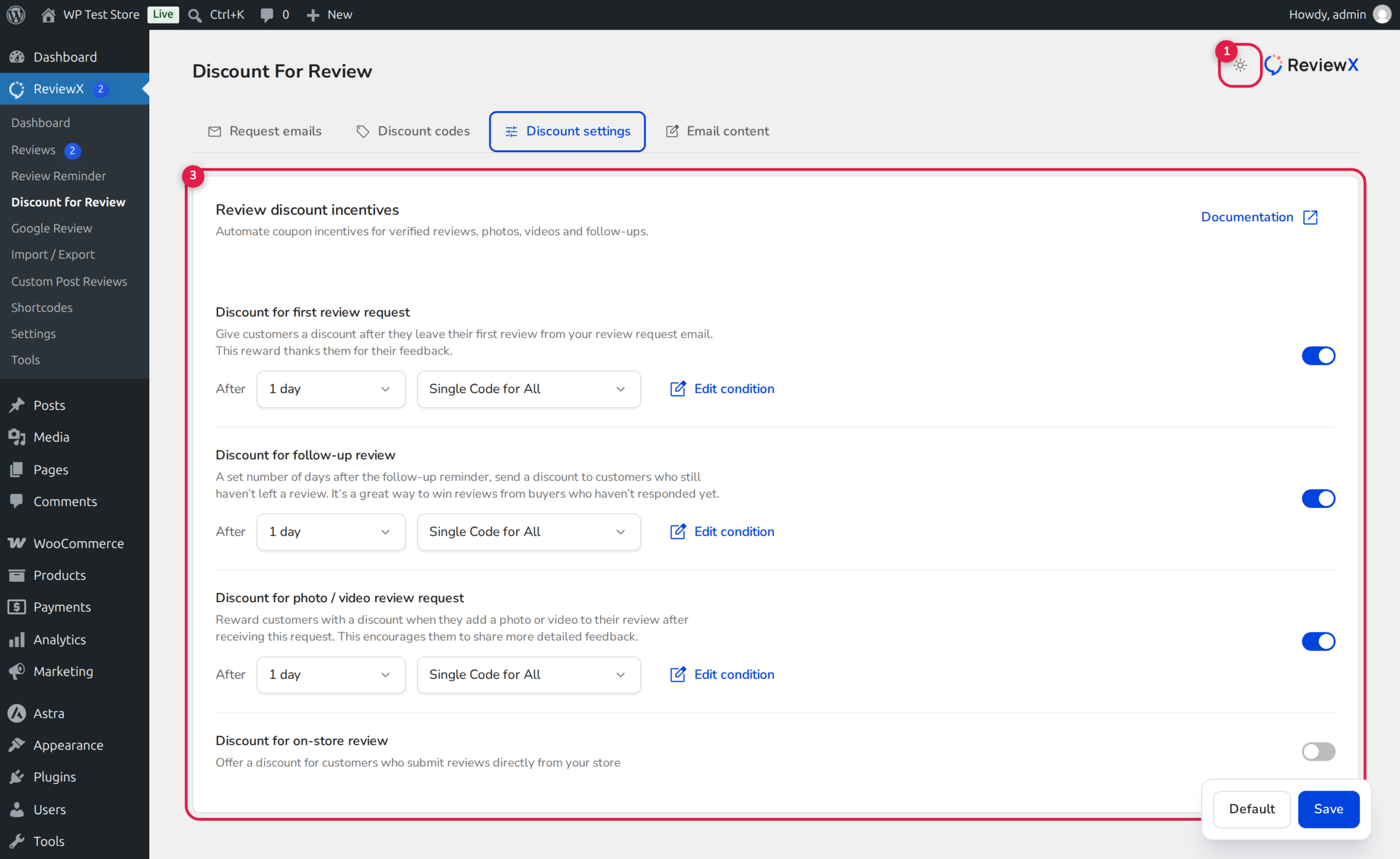
From your WordPress dashboard, navigate to ReviewX → Discount and click on the Discount settings tab at the top.
Step 2: Select the Target Discount Campaign
Locate the incentive campaign you wish to configure (e.g., Discount for first review request marked with Badge 1, or follow-up campaigns marked with Badge 3).
Step 3: Define Exclusion Parameters
Within the campaign configuration drawer (Badge 2):
- Excluded Products: Search and select individual product SKUs or titles that should not generate or accept discounts.
- Excluded Categories: Select categories such as Clearance, Gift Cards, or Wholesale to bulk-exclude entire lines.
- Exclude Sale Items: Check the box to prevent stacking review coupons on top of promotional store sales.
- Minimum Spend: Set a minimum qualifying cart total required to redeem the discount code.
Step 4: Save Campaign Settings
Click Save to commit your changes. All coupons generated from this campaign forward will strictly enforce the configured exclusions.


